Planowa는 지출 금액만 기록하는 가계부가 아닙니다. 아래 네 가지 용어와 기본 사용 흐름을 알아 두시면 모든 화면을 쉽게 이해하실 수 있습니다.
1.1예산 · 정산 · 차액
용어
의미
입력 위치
정산
실제로 들어오고 나간 금액입니다. 카드 결제 한 건, 월급 한 건이 모두 정산에 해당합니다.
일일 기록(문자 붙여넣기 · 직접 입력 · 표 입력)
예산
해당 월에 항목별로 "이만큼 쓰겠다(또는 모으겠다)"고 미리 계획한 금액입니다.
월말정산 화면에서만, 월 × 항목 단위로 한 번 입력
차액
예산과 정산의 차이입니다. 지출은 예산 − 정산(남으면 +), 수입 · 투자/저축 · 대출상환은 정산 − 예산(더 벌거나 더 모으면 +)으로 계산합니다.
자동 계산
구분 · 항목
구분은 총수입 · 투자/저축 · 대출상환 · 고정지출 · 변동지출 · 특별지출 여섯 가지로 고정되어 있습니다. 항목(식비 · 교통비 · 급여 등)은 구분 아래에 자유롭게 추가할 수 있으며, 항목 이름은 전체에서 하나뿐이므로 항목만 선택하면 구분이 자동으로 정해집니다.
설정 › 항목 · 자산
기본 사용 흐름기록(결제 문자 붙여넣기) → 정리(주간정산으로 한 주 확인) → 회고(월말정산에서 예산과 정산을 비교하고 마감 피드백 작성) → 계획(다음 달 예산과 로드맵). 이 설명서도 같은 순서로 구성되어 있습니다.
1.2이용 환경
iPhone 앱 — App Store에서 Planowa 가계부를 설치합니다. Face ID 잠금 해제와 알림 기능을 제공합니다.
Android 앱 — Google Play에서 설치합니다. 지문 · 얼굴 인식 잠금 해제와 알림 기능은 1.1.0 이상에서 제공됩니다.
웹 — 컴퓨터나 휴대폰 브라우저에서 planowa.com에 접속하면 설치 없이 바로 이용할 수 있습니다. 휴대폰 브라우저에서는 설정 › 일반 › 앱으로 설치로 홈 화면에 추가하면 앱처럼 실행됩니다(iPhone Safari는 하단 공유 → 홈 화면에 추가).
휴대폰 화면은 목록과 카드 형태로, 컴퓨터 화면(가로 920px 이상)은 엑셀과 같은 넓은 표 형태로 표시됩니다. 같은 계정으로 로그인하면 어느 기기에서 기록하더라도 동일한 내용을 확인할 수 있습니다.
1.3처음 실행 시 화면
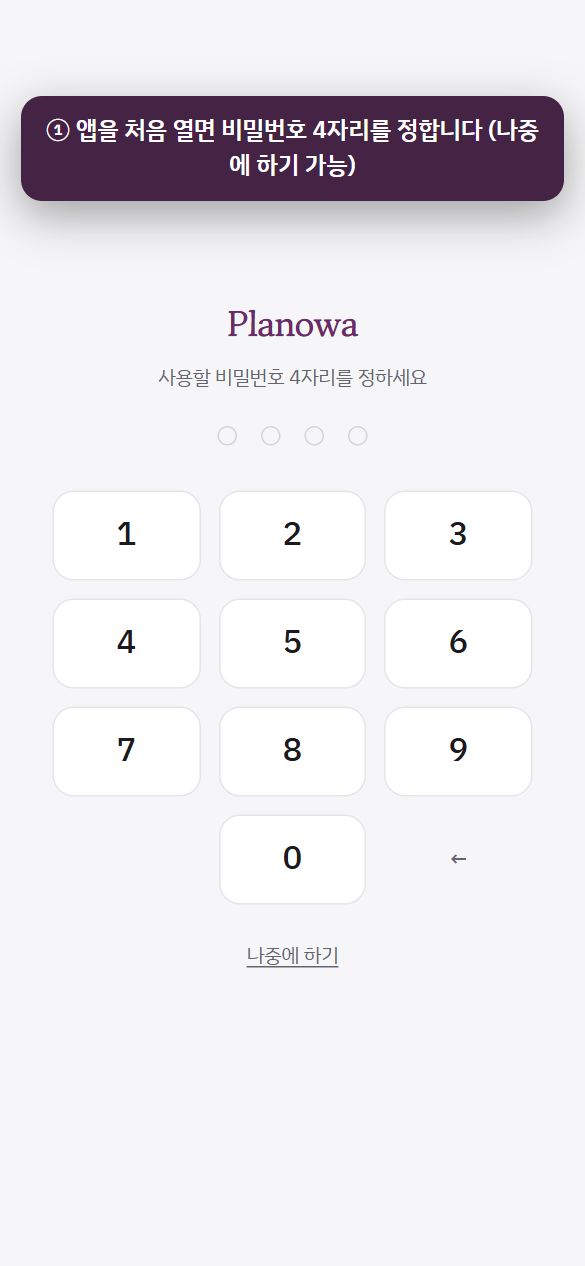
1앱(iPhone · Android)을 처음 열면 비밀번호 4자리를 정하는 화면이 나옵니다. 지금 정하지 않으려면 나중에 하기.
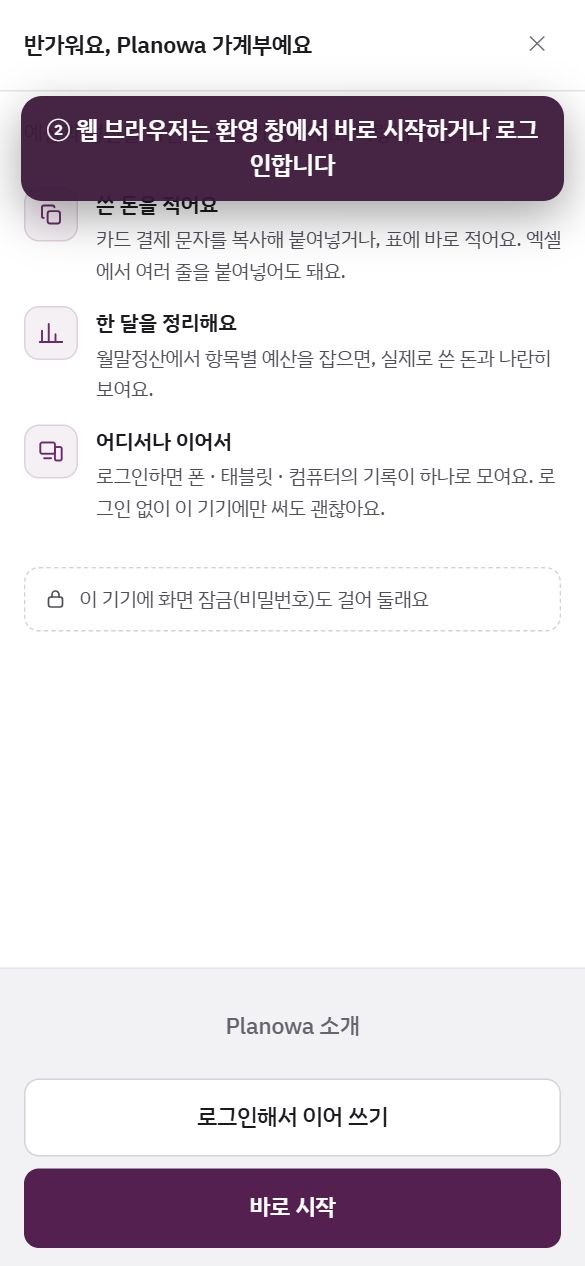
2웹 브라우저는 환영 창에서 바로 시작하거나, 다른 기기에서 쓰던 기록이 있으면 로그인해서 이어 쓰기.
그림을 옆으로 밀어 다음 단계를 봅니다.
앱(iPhone · Android · 홈 화면 앱) — 비밀번호 4자리를 설정하는 화면이 먼저 표시됩니다. 휴대폰에서는 기록이 바로 노출되기 때문입니다. 지금 설정하지 않으려면 나중에 하기를 선택하세요. 이후 설정 › 개인정보보호 › 화면 잠금에서 언제든 설정할 수 있습니다.
웹 브라우저 — 환영 안내 창이 표시됩니다. 바로 시작을 선택하거나, 다른 기기에서 사용하던 기록이 있다면 로그인해서 이어 쓰기를, 이 컴퓨터에도 잠금을 설정하려면 화면 잠금을 선택합니다.
기록이 하나도 없으면 가계부 화면에 "첫 기록을 남겨 보세요" 안내 카드가 표시됩니다. 여기에서 문자 붙여넣기 · 직접 입력 · 로그인을 바로 선택할 수 있습니다.
1.4로그인과 동기화
로그인하지 않아도 모든 가계부 기능을 사용할 수 있습니다. 기록은 먼저 현재 기기(브라우저)에 저장되며, 로그인은 "여러 기기에서 같은 기록 보기" 기능을 켜는 역할만 합니다.
설정 › 계정을 엽니다(휴대폰은 더보기의 설정 묶음에서 계정, 컴퓨터는 상단 탭 맨 오른쪽 설정).
로그인 방식을 선택합니다 — 카카오 · Google. iPhone 앱에서는 Apple 로그인도 가능합니다.
로그인하면 현재 기기의 기록이 계정에 저장되고, 다른 기기에서 같은 계정으로 로그인하면 기록을 불러옵니다. 지금 동기화로 즉시 맞출 수 있으며 마지막 동기화 시각이 표시됩니다.
같은 사용자라도 로그인 방식이 다르면 다른 계정입니다. 컴퓨터는 카카오, 휴대폰은 Google로 로그인하면 서로 다른 사용자로 인식되어 기록이 합쳐지지 않습니다. 모든 기기에서 같은 로그인 방식을 사용하세요. 이미 어긋났다면 한쪽에서 설정 › 데이터 › 전체 백업(JSON)을 받아 다른 쪽에서 백업 불러오기를 하시면 됩니다.
기기별 설정(화면 잠금 비밀번호 · Face ID · 글자 크기 · 알림)은 동기화되지 않으며, 기기마다 따로 설정합니다.
인터넷이 연결되지 않아도 현재 기기에는 정상적으로 저장되며, 연결되면 계정에 반영됩니다.
로그아웃해도 현재 기기의 기록은 유지됩니다. 계정 삭제는 서버의 기록을 삭제하고 기기의 기록은 남겨 둡니다(4장 FAQ 참고).
1.5언어 · 통화 · 국가
설정 › 일반에서 변경합니다.
언어 — 한국어 · 영어. 메뉴와 안내 문구가 바뀌며 기록 내용은 그대로 유지됩니다.
표시 통화 — ₩12,000원 / $12.50처럼 기호와 소수 자릿수만 바뀝니다. 금액을 환산하지는 않습니다. 해외 결제 환산은 자동 입력 › 해외 결제 환율에서 처리합니다.
국가 — 현재 거주 국가입니다. 해당 국가의 공휴일만 달력에 붉은색으로 표시됩니다.
공휴일 — 달력에 표시할 국가(여러 개 선택 가능, 국기로 구분)입니다.
2장
모바일 앱 매뉴얼모바일 전용
iPhone · Android 앱과 휴대폰 브라우저의 화면은 동일합니다. 하단 탭 다섯 개와 오른쪽 아래 버튼 두 개만 익히시면 됩니다.
2.0화면 구성
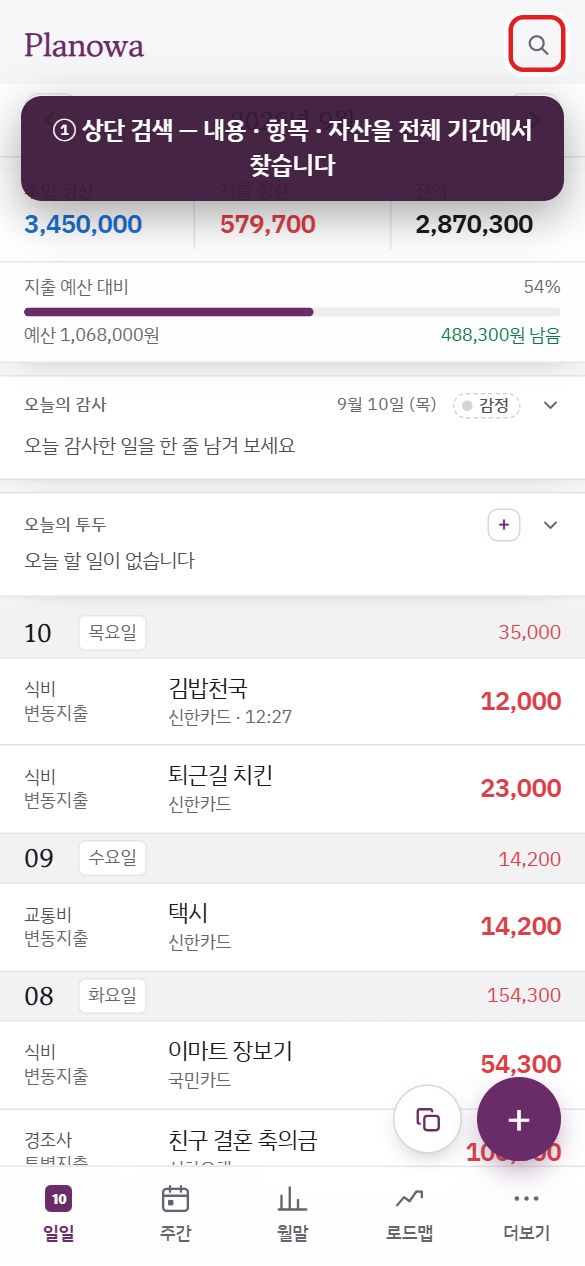
1상단 검색창 — 내용 · 항목 · 자산 · 메모 · 금액을 전체 기간에서 찾습니다.
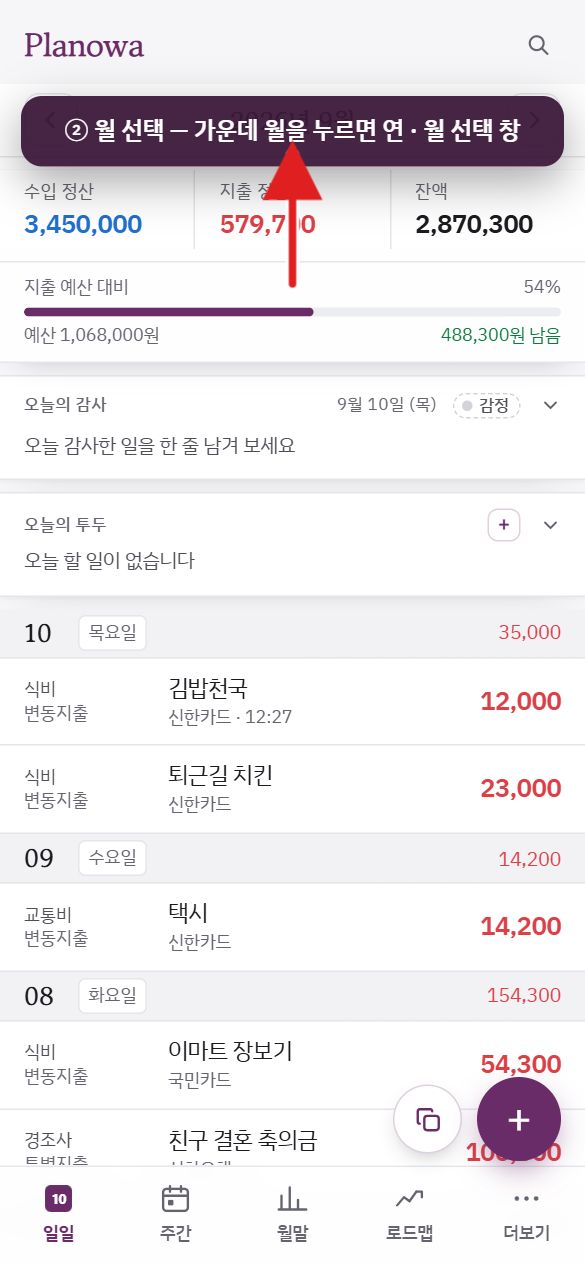
2월 선택 — ‹ › 로 월을 이동하고, 가운데 월을 누르면 연 · 월 선택 창이 열립니다.
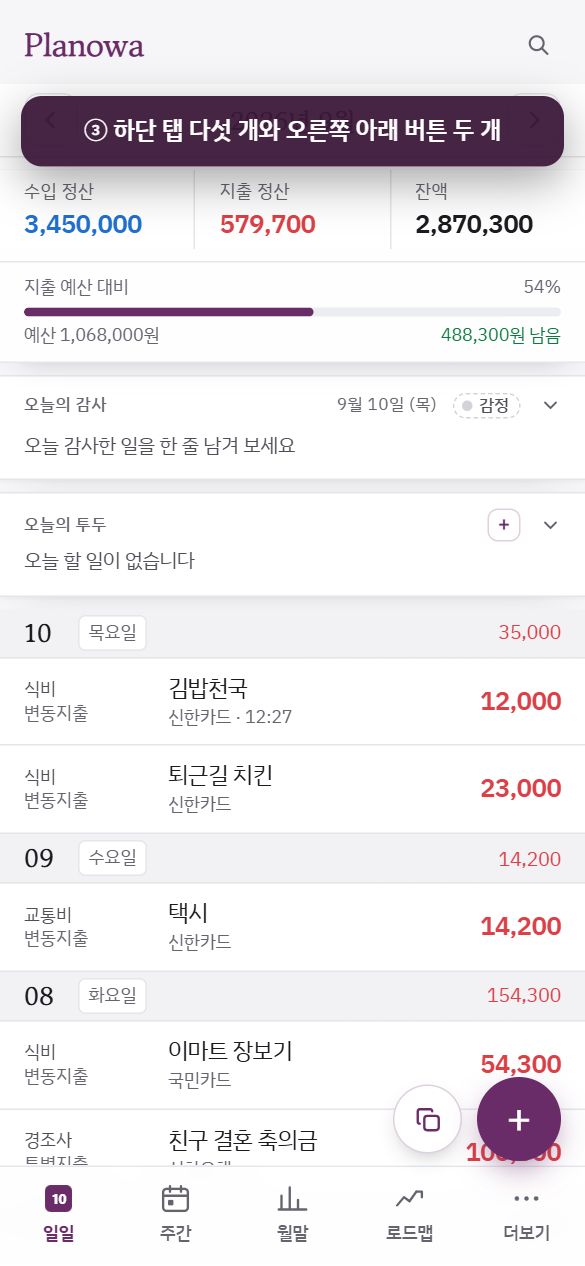
3하단 탭 다섯 개(일일 · 주간 · 월말 · 로드맵 · 더보기)와 오른쪽 아래 버튼 두 개(붙여넣기 · +).
그림을 옆으로 밀어 다음 단계를 봅니다.
일일주간월말로드맵더보기
영역
내용
상단
검색창 — 내용 · 항목 · 자산 · 메모 · 금액을 전체 기간에서 검색합니다. 입력하는 동안 관련 단어가 제안되며, 오른쪽 ✕로 검색어를 한 번에 지웁니다. 검색 중에는 감사 · 투두 카드가 숨겨지며, 검색 지우기를 선택하면 다시 표시됩니다.
월 선택
‹2026년 9월› — 월을 이동하며, 가운데 월 표시를 선택하면 연 · 월 선택 창이 열립니다(이번 달로 버튼 포함). 그 아래에는 수입 정산 · 지출 정산 · 잔액과 지출 예산 대비 막대(예산 사용 비율과 남은 금액)가 표시됩니다. 주간 탭에서는 본문의 주간 요약이 대신하므로 월 이동 줄만 표시됩니다.
하단 탭
일일 · 주간 · 월말 · 로드맵 · 더보기. 달력 · 통계 · 자산 · 감사일기 · 투두 · 설정 · 이용방법은 더보기 안에 있습니다.
오른쪽 아래
버튼 두 개 — 붙여넣기(복사한 결제 문자 입력) · +(직접 입력). 자세한 내용은 2.1에서 안내합니다.
Android에서는 뒤로 가기 버튼을 누르면 열려 있는 창(입력 · 설정 · 하루 보기)이 먼저 닫힙니다.
2.1기록하기 — 가장 먼저 할 일모바일
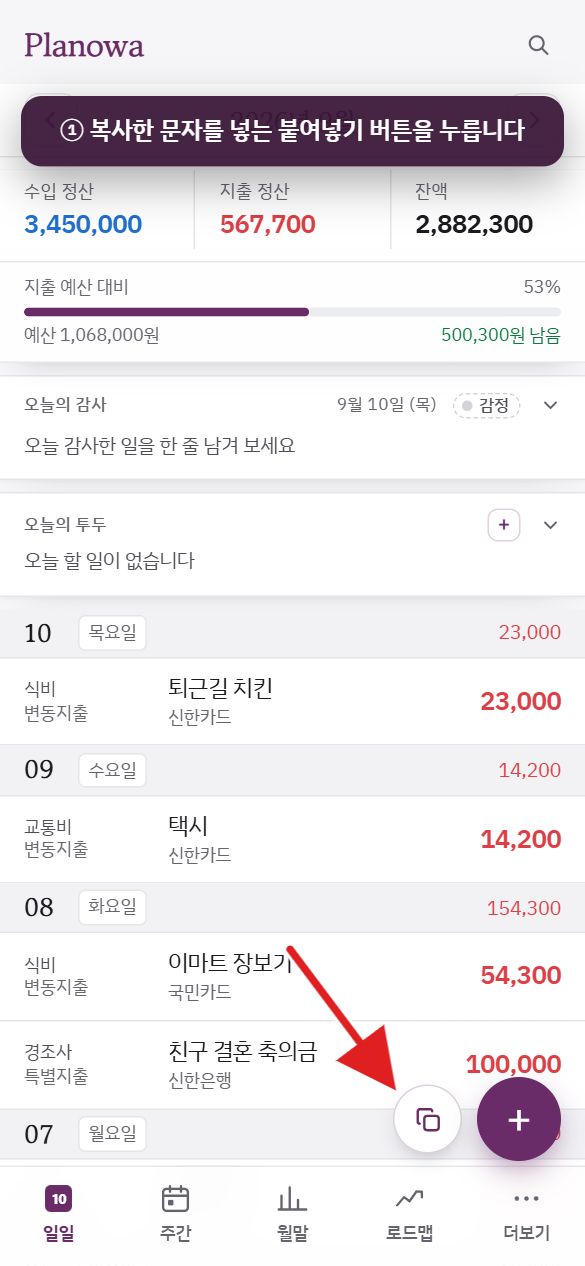
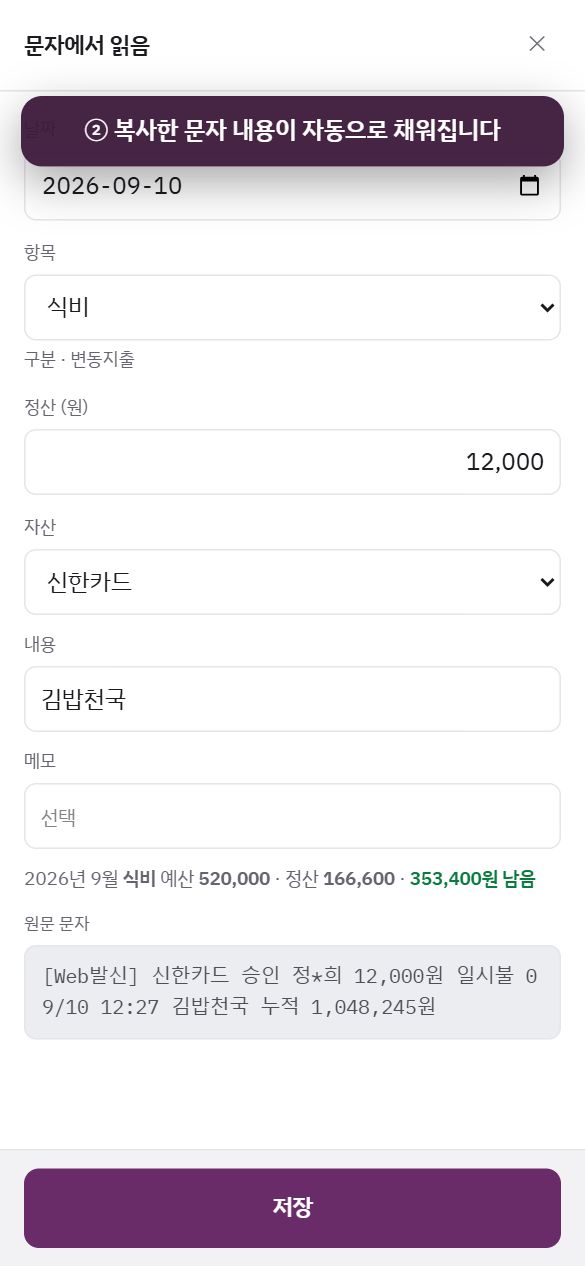
카드 결제 문자를 복사해 붙여넣으면 날짜 · 금액 · 가맹점 · 카드가 자동으로 입력됩니다. 확인하고 저장만 하면 기록이 끝납니다.
1문자 앱에서 카드 승인 문자를 복사한 뒤, 오른쪽 아래 붙여넣기 버튼을 누릅니다.
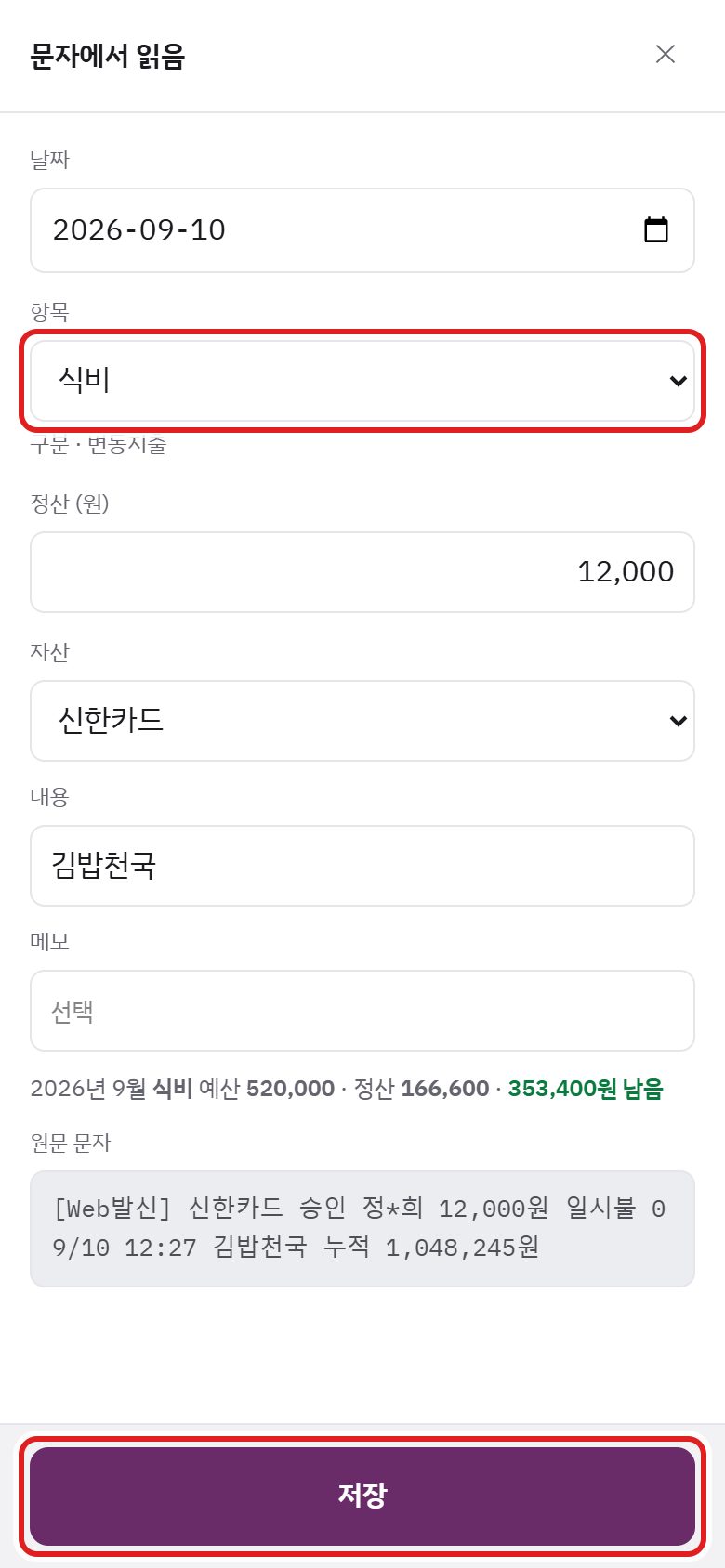
2복사한 문자 내용(날짜 · 항목 · 금액 · 카드 · 가맹점)이 자동으로 채워집니다.
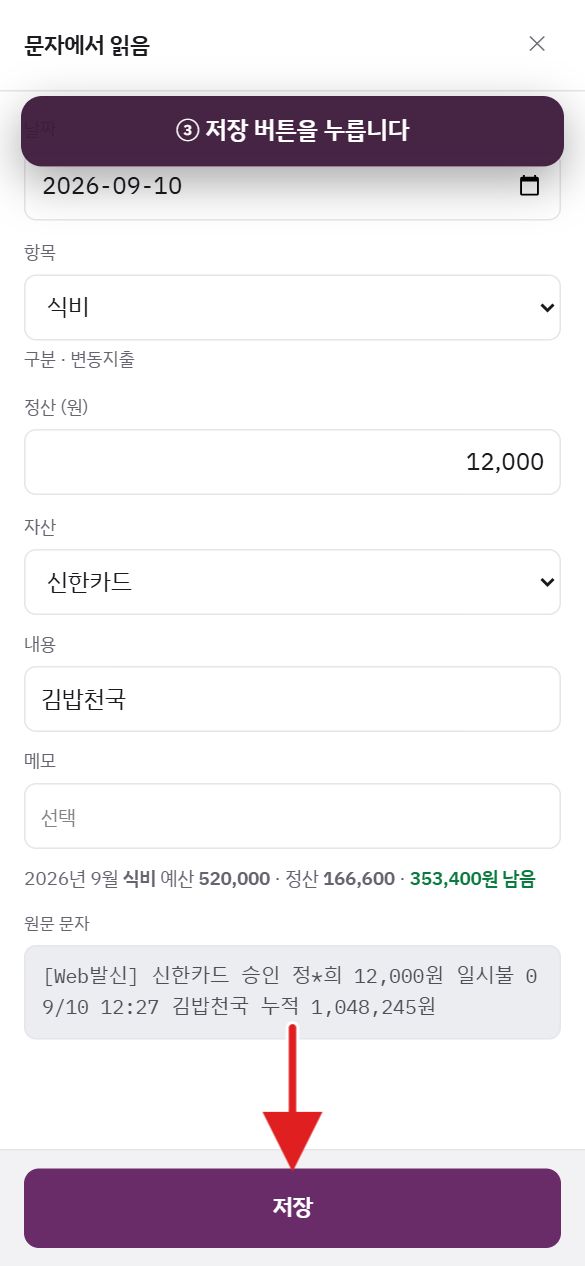
3잘못된 부분만 고치고 저장 버튼을 누릅니다. 여러 건이면 저장하고 다음으로 한 건씩.
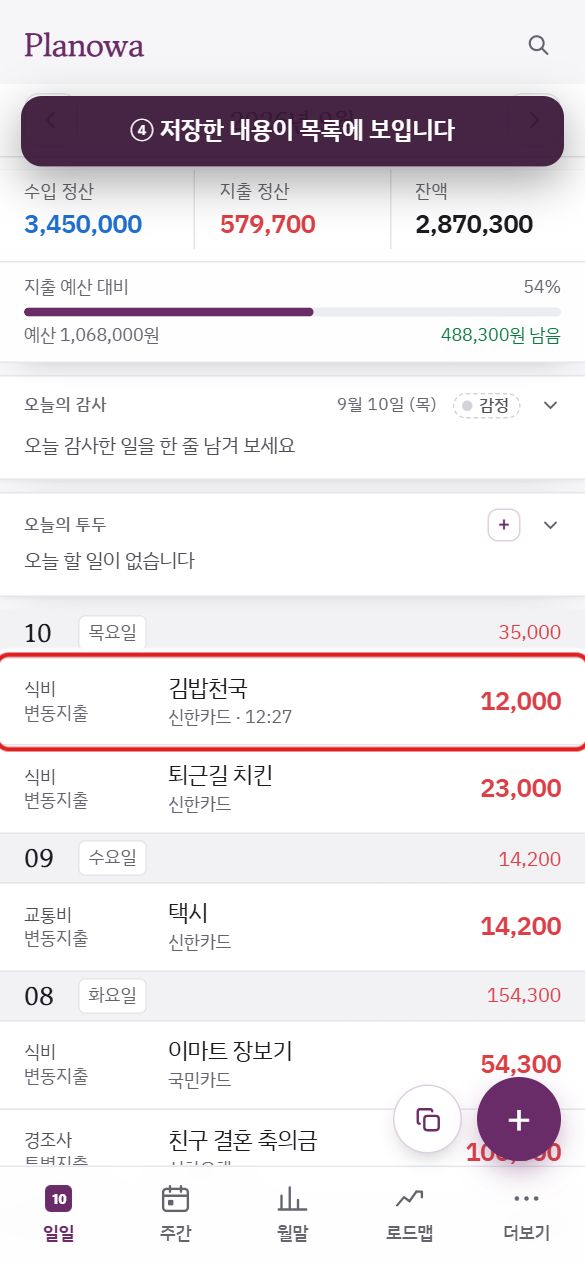
4저장한 내용이 목록 맨 위에 보입니다.
그림을 옆으로 밀어 다음 단계를 봅니다.
자세히 보기 — 문자 인식 규칙 · 직접 입력 · 수정 · 즐겨찾기 · 고정 수입지출
A. 결제 문자 붙여넣기 (권장)
"문자에서 읽음" 창항목이 다르면 바꾸고(다음부터 그 가맹점은 자동 분류) 저장을 선택합니다. 여러 건이면 1 / 3처럼 순서가 표시되며 저장하고 다음 · 건너뛰기로 한 건씩 처리합니다.
항목을 수정하면 기억합니다. 해당 가맹점은 다음부터 자동으로 그 항목으로 분류됩니다(설정 › 자동 입력 › 자동 분류 규칙).
자산(카드) 이름을 문자에 표시된 카드사 이름과 같게 등록해 두면 자동으로 연결됩니다(설정 › 항목 · 자산 › 자산).
이미 저장한 문자는 이미 저장됨 표시로 알려 주어 중복 입력을 방지합니다.
"3개월 할부" 문자는 월별로 한 건씩, 총 3건으로 나누어 저장합니다(현금주의). 목록에는 3개월 할부 1/3과 같이 표시됩니다.
해외 승인 문자(달러 · 엔 등)는 원화 금액이 없으므로 설정 › 자동 입력 › 해외 결제 환율의 환율로 환산하고 환산 표시를 붙입니다. 실제 청구 금액은 카드사 환율로 다시 계산되므로 참고용 근사치입니다.
문자에서 읽지 못한 항목(날짜 · 금액)은 확인 표시와 함께 붉은색으로 나타납니다. 아래의 원문 문자를 참고하여 입력해 주세요.
더 빠르게 — 클립보드 자동 확인설정 › 일반 › 클립보드 자동 확인을 켜면, 문자를 복사해 앱으로 돌아오는 즉시 "붙여넣겠습니까?"라고 먼저 묻습니다. 브라우저에서 클립보드 읽기를 한 번 허용해야 동작하며, iPhone Safari처럼 허용을 지원하지 않는 환경에서는 붙여넣기 버튼을 그대로 사용하시면 됩니다.
B. + 직접 입력
입력란
설명
날짜
기본값은 오늘입니다(다른 월을 보고 있으면 해당 월 1일).
항목
목록에서 선택합니다. 선택하면 아래에 구분이 표시되고, 해당 월 해당 항목의 예산과 남은 금액도 함께 보입니다. 목록 맨 아래 + 새 항목 만들기를 선택하면 그 자리에서 구분을 정해 항목을 추가할 수 있습니다.
금액
실제로 쓰거나 받은 금액(정산)입니다. 입력란을 선택하면 계산기 키패드가 열리며, 12000+3500처럼 수식을 입력하고 완료(Enter)를 누르면 계산됩니다.
자산
결제한 카드 · 계좌를 선택합니다.
내용
가맹점명이나 간단한 메모입니다. 입력하는 동안 이전에 입력한 내용이 자주 · 최근 순으로 제안됩니다.
메모
선택 사항입니다.
창 상단의 ★을 선택하면 즐겨찾기 목록이 열립니다. 하나를 선택하면 항목 · 내용 · 자산 · 금액이 한 번에 입력됩니다(즐겨찾기 등록 방법은 아래 C 참고).
C. 수정 · 삭제 · 복사 · 즐겨찾기
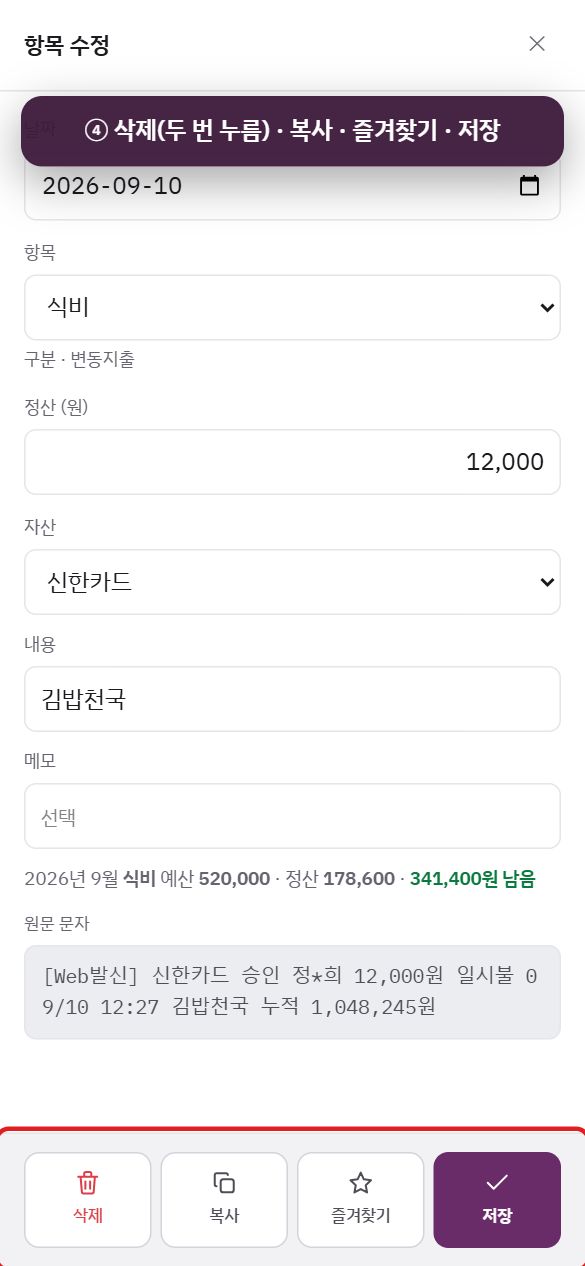
목록에서 기록 한 줄을 선택하면 항목 수정 창이 열립니다. 하단 버튼은 네 가지입니다.
삭제 — 실수를 방지하기 위해 두 번 눌러야 합니다(한 번 누르면 "정말?"로 바뀜). 할부의 한 회차라면 이 건만 삭제 · 할부 전체 삭제 중 선택합니다.
복사 — 같은 내용으로 오늘 날짜의 새 입력 창을 엽니다(저장은 직접 선택).
즐겨찾기(★) — 자주 입력하는 기록(커피 · 보험료 등)을 등록해 둡니다. 즐겨찾기 목록에서 연필 아이콘으로 이름 · 금액을 수정하고 ✕로 삭제합니다.
저장.
D. 매달 같은 날 자동 등록 — 고정 수입 · 지출
월급 · 보험료 · 통신비처럼 매달 같은 날 같은 금액이 발생하는 항목은 설정 › 고정 수입 · 지출에 한 번 등록하면 매달 해당 날짜에 가계부에 자동으로 추가됩니다(목록에 고정 표시). 등록한 날 이후부터 적용되며, 해당 날짜가 없는 달(31일 등)에는 말일에 등록됩니다. 자세한 내용은 2.7을 참고하세요.
2.2일일 탭 — 오늘의 기록과 월별 목록
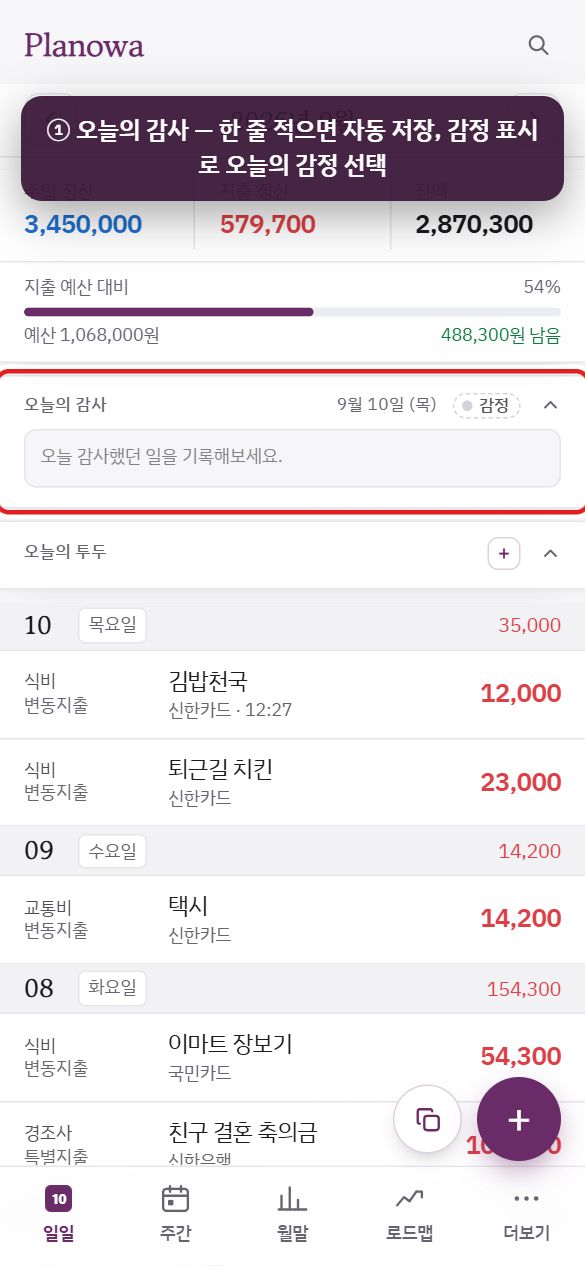
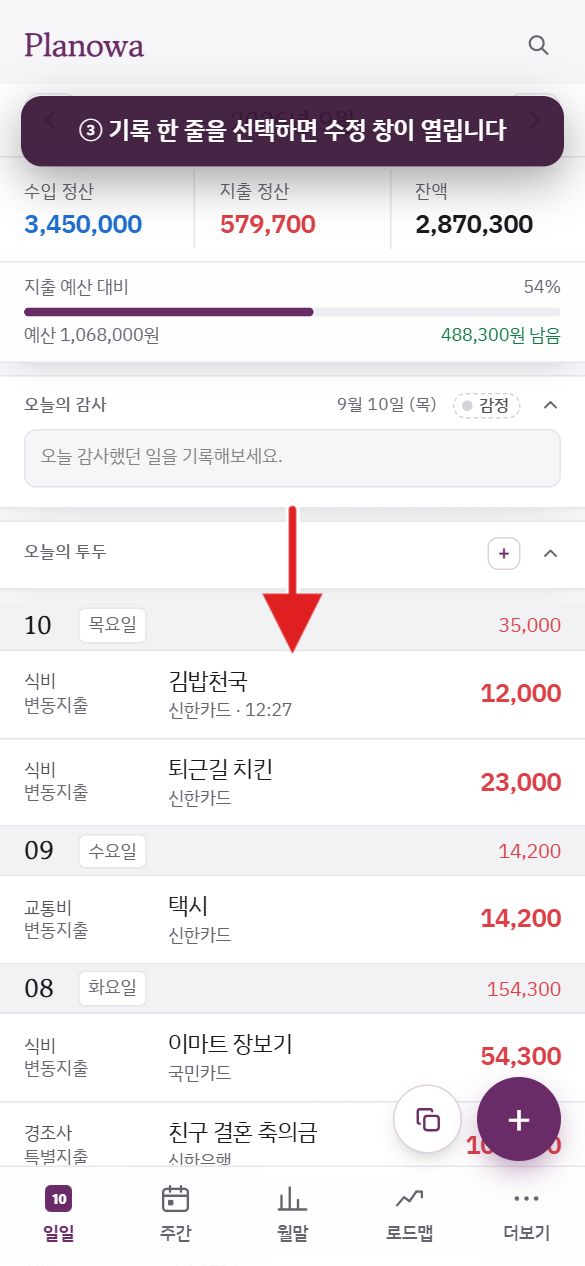
1오늘의 감사 — 한 줄 적으면 자동으로 저장됩니다. 제목 옆 감정 표시를 눌러 오늘의 감정을 고릅니다.
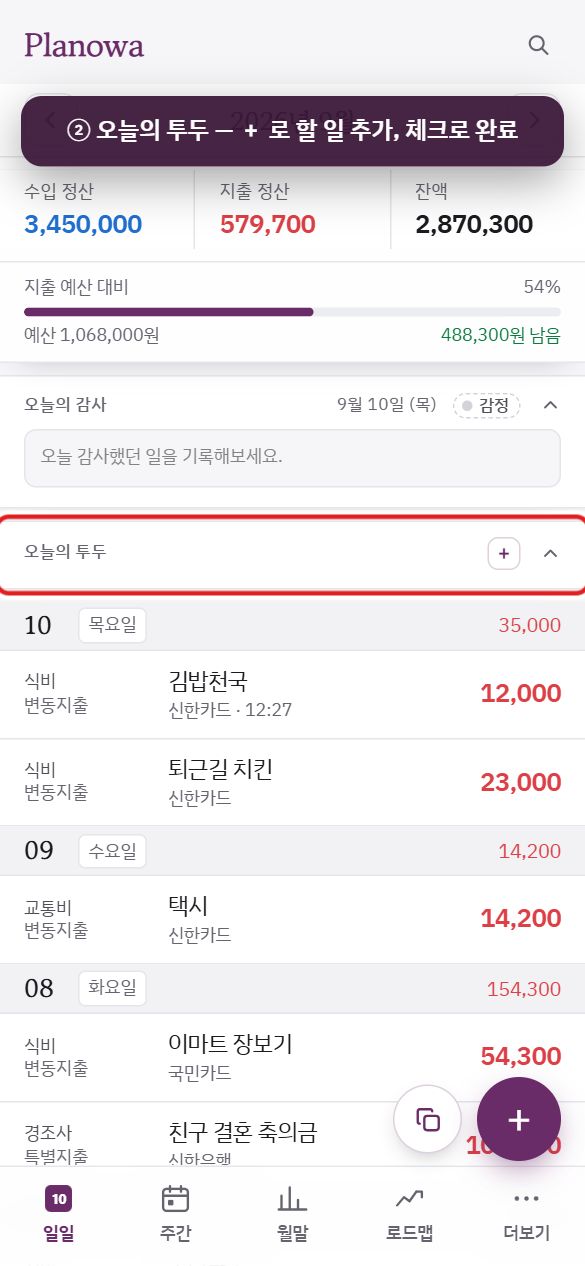
2오늘의 투두 — + 로 할 일을 추가하고, 체크 박스로 완료 처리합니다.
3기록 목록에서 한 줄을 선택하면 수정 창이 열립니다.
4수정 창 하단 — 삭제(두 번 누름) · 복사 · 즐겨찾기 · 저장.
그림을 옆으로 밀어 다음 단계를 봅니다.
수입 · 지출 현황 — 구분(총수입 · 변동지출 등)별 이번 달 정산 합계입니다.
오늘의 감사 카드 — 오늘 감사했던 일을 한 줄 기록합니다. 입력하는 동안 자동으로 저장되며(비우면 삭제), 제목 옆 감정 표시를 선택하면 오늘의 감정 열 가지(기쁨 · 설렘 · 평온 · 뿌듯 · 안도 · 지침 · 슬픔 · 불안 · 화남 · 허전) 중 하나를 고를 수 있습니다. 다시 선택하면 해제됩니다. 전체보기 →에서 지금까지의 감사일기를 모두 볼 수 있습니다(2.6).
오늘의 투두 카드 — + 투두 추가로 할 일을 입력하고(시간은 선택), 체크 박스로 완료 처리, 내용을 선택해 수정, 내용을 비우면 삭제됩니다. 입력하고 Enter를 눌러도 목록은 그 자리에 그대로 있습니다. 상단의 1/3은 완료 건수입니다. 전체보기 →는 투두 리스트로 이동합니다(2.6).
두 카드 모두 오른쪽 위 접기로 한 줄 요약만 남길 수 있습니다. 사용하지 않는 기능은 설정 › 일반 › 기능 설정에서 끄면 화면에서 사라집니다(기존 기록은 유지).
기록 목록 — 날짜마다 해당 일의 수입(파란색) · 지출(붉은색) 합계가 표시되고, 한 줄에 항목 · 구분 / 내용 · 메모 · 자산 / 금액이 나타납니다. 긴 항목 이름은 한 줄에 맞춰 뒤를 …로 줄입니다. 할부 1/3, 환산, 고정 아이콘이 표시로 붙습니다. 선택하면 수정 창이 열립니다.
2.3주간 탭 — 주간정산모바일
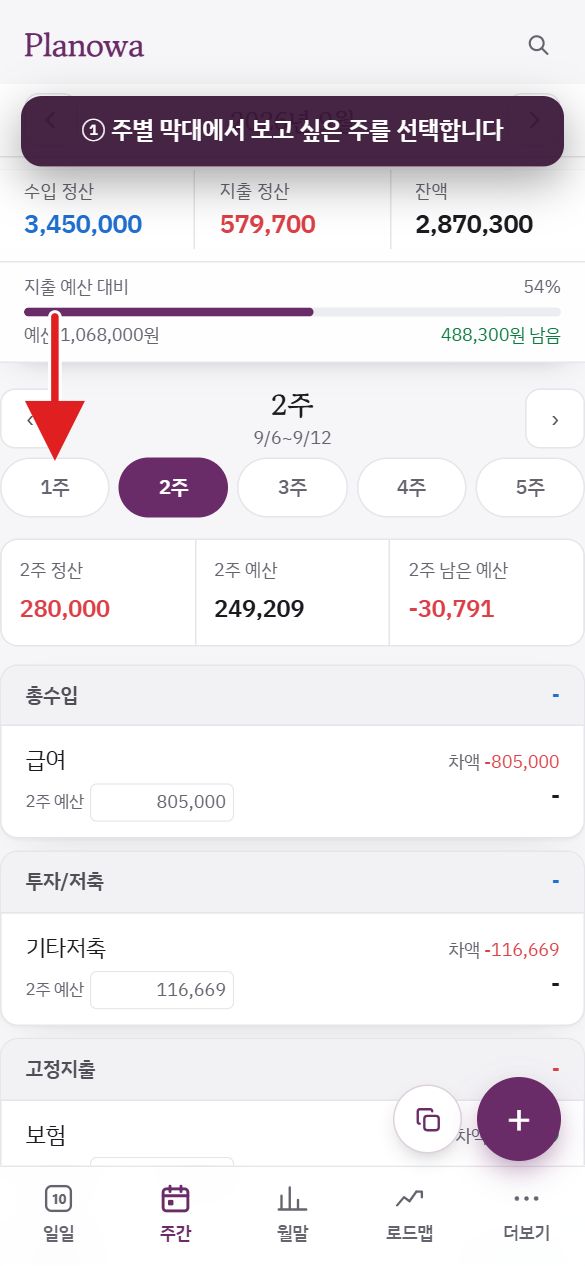
월 예산을 주 단위로 나누어 "이번 주에 얼마를 쓸 수 있고 얼마가 남았는지"를 보여 줍니다. 주는 일요일에 시작합니다.
1주별 막대에서 보고 싶은 주를 선택합니다. 처음에는 이번 주가 열립니다.
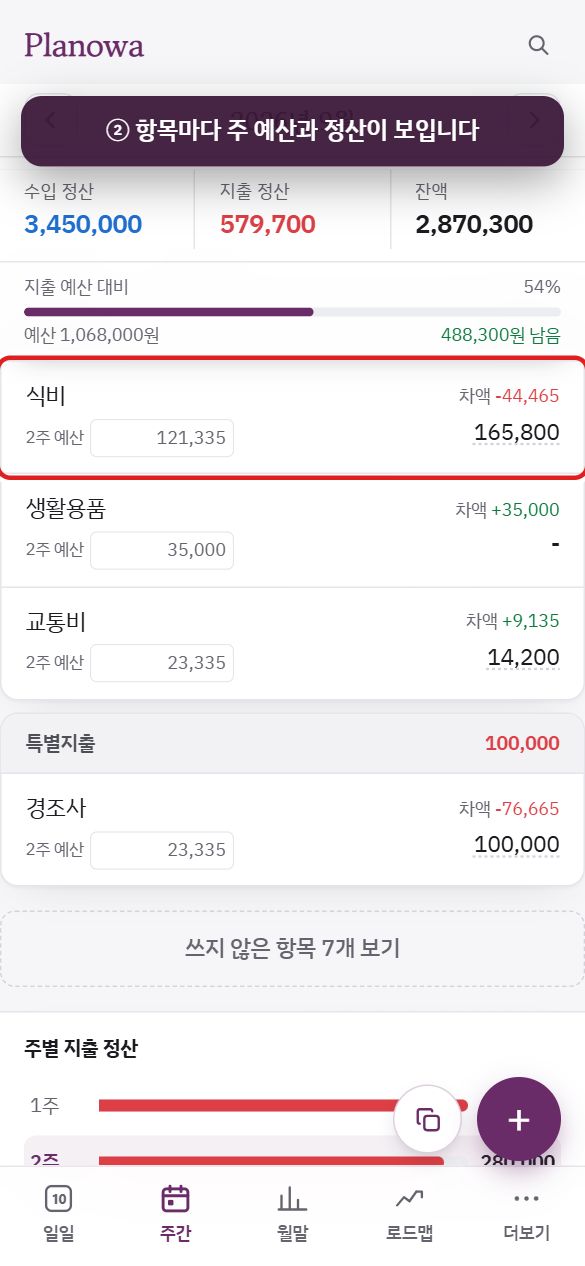
2항목마다 이번 주의 예산 · 정산 · 차액이 표로 나란히 보입니다. 주 예산은 월 예산에서 자동으로 나뉩니다.
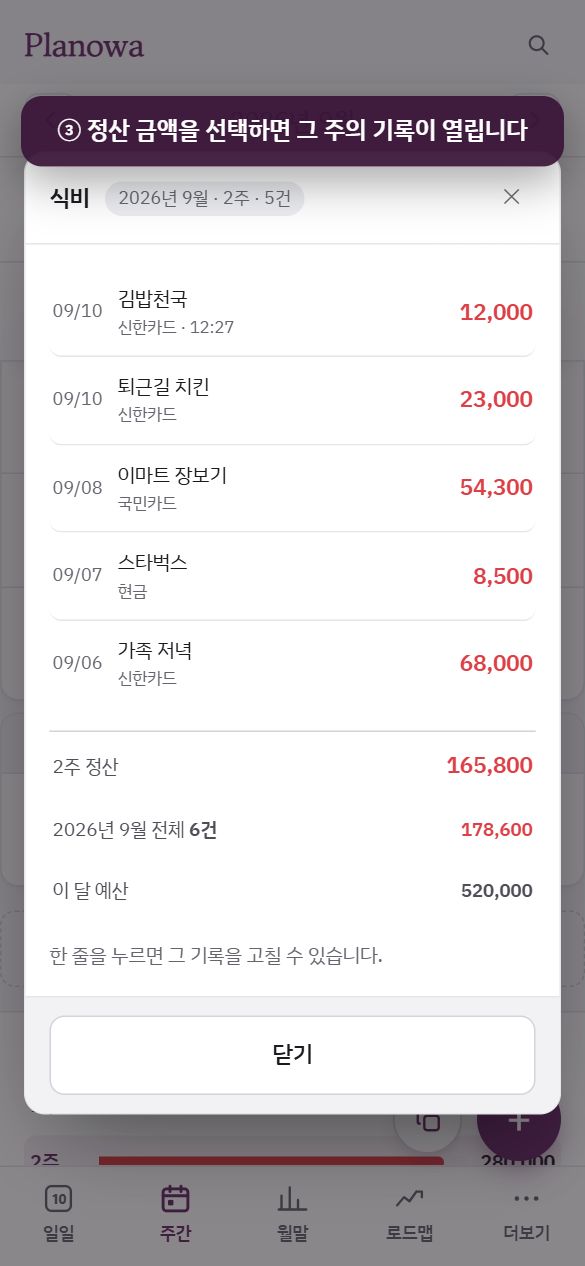
3정산 금액을 선택하면 그 주 해당 항목의 기록이 열리고, 한 줄을 선택하면 바로 수정할 수 있습니다.
그림을 옆으로 밀어 다음 단계를 봅니다.
자세히 보기 — 주 예산 자동 배분 · 숨은 항목 · 저장
상단 요약 네 가지 — 주 수 · 지출 예산(월말정산에서 입력한 월 예산) · 지출 정산 · 차액(예산 내 사용 여부).
주별 지출 정산 막대 — 1주 · 2주 … 를 선택하면 해당 주로 이동합니다. 이번 주가 표시됩니다.
항목 표 — 맨 위 칸 이름 줄 아래로 항목마다 항목 | 예산 | 정산 | 차액(해당 주 기준) 네 칸이 표시됩니다. 예산은 예산 칸에 바로 입력합니다. 처음부터 모든 항목이 보이며, 쓰지 않은 항목 숨기기로 줄였을 때만 쓰지 않은 항목 N개 보기가 나타나 다시 펼칠 수 있습니다.
주 예산은 자동 배분됩니다 — 월 예산을 해당 주에 포함된 날 수에 비례해 나누되, 날짜가 정해진 항목(고정 수입 · 지출의 '매달 며칠', 머니플랜 날짜)은 해당 날짜가 속한 주에 전액 배정됩니다. 입력란을 직접 수정하면 해당 주만 고정되고 나머지 주가 자동으로 조정되며, 비우면 자동 배분으로 돌아갑니다(흐린 글씨 = 자동).
정산 금액을 선택하면 해당 주 해당 항목의 내역이 열리고, 한 줄을 선택하면 바로 수정할 수 있습니다.
하단 이미지 저장 · xlsx 다운로드 — 한 달 전체 주간정산 표를 이미지 · 엑셀로 저장합니다.
2.4월말 탭 — 월말정산과 예산 입력모바일
예산은 이 화면에서만 입력합니다. 항목마다 항목 | 예산 | 정산 | 차액 네 칸의 표(맨 위에 칸 이름 줄)로 보여 어디서 넘쳤고 얼마나 남았는지 한눈에 알 수 있습니다.
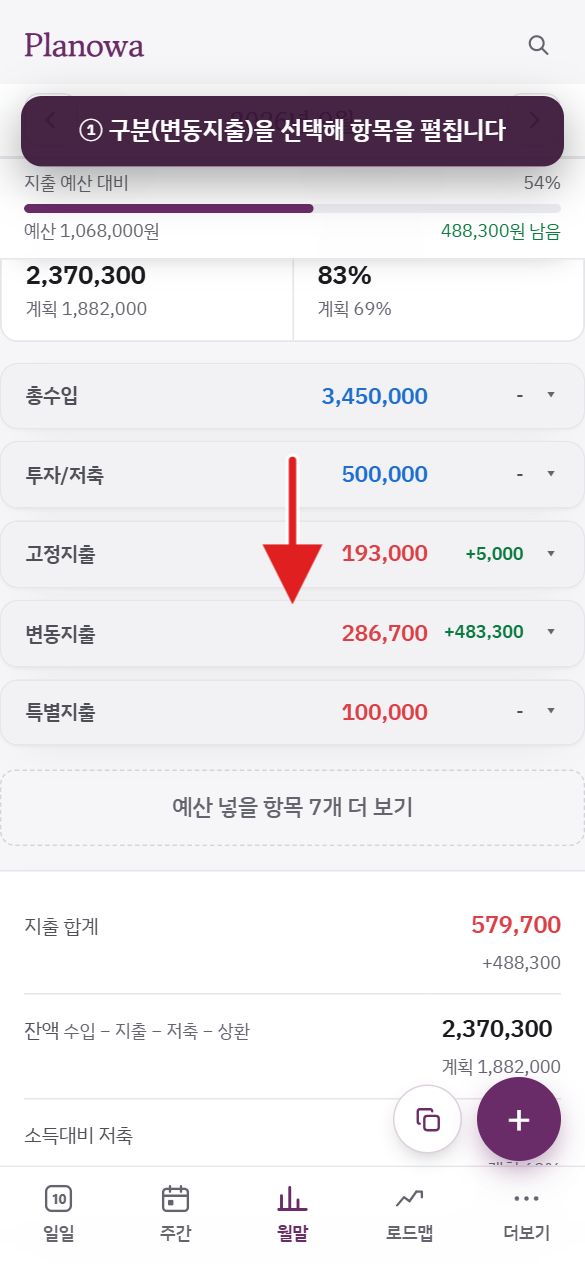
1상단 정산 범위가 월말정산인지 확인하고, 구분 제목(변동지출 등)을 선택해 항목을 펼칩니다.
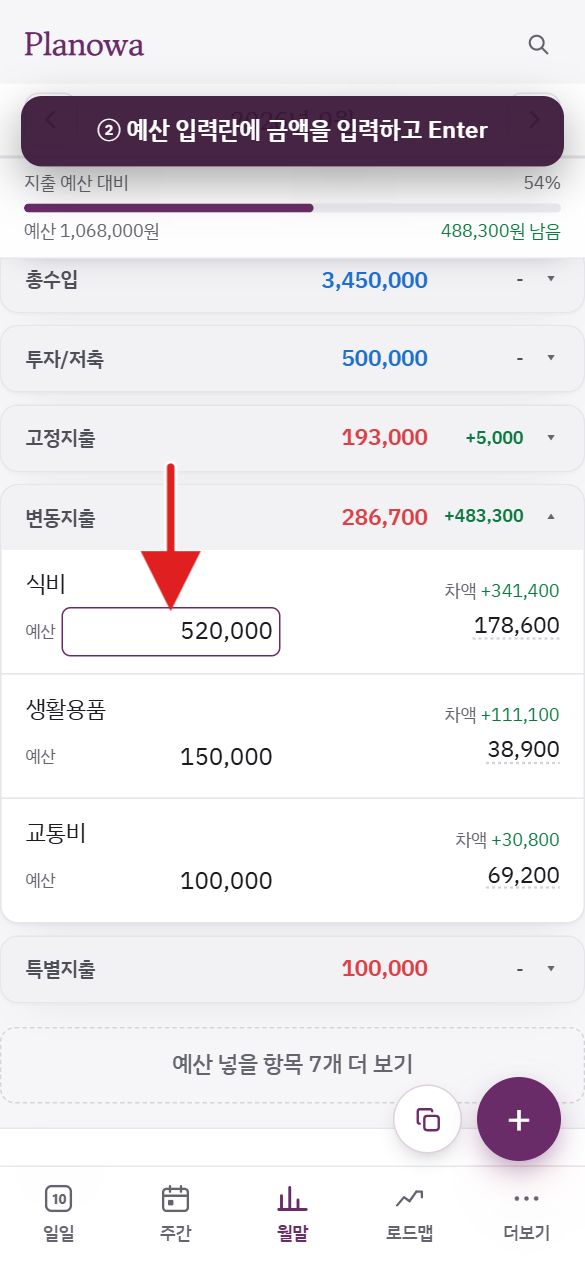
2항목의 예산 입력란에 금액을 입력하고 Enter(키보드의 완료). 즉시 저장됩니다. 아직 기록이 없는 항목도 처음부터 모두 보이며, 예산·정산 없는 항목 숨기기로 줄일 수 있습니다.
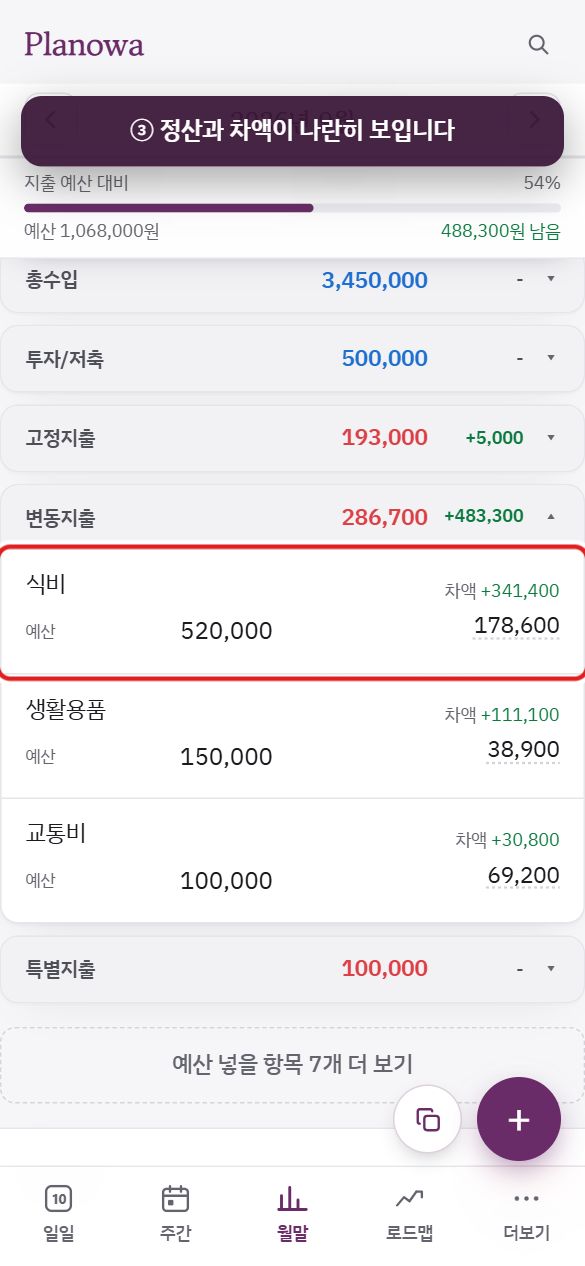
3정산과 차액이 나란히 보입니다. 정산 금액을 선택하면 그 항목의 기록이 열리고, 월말에는 아래 마감 피드백으로 한 달을 정리합니다.
그림을 옆으로 밀어 다음 단계를 봅니다.
자세히 보기 — 상단 요약 · 목표와 마감 피드백 · 연간정산 · 머니플랜
상단 요약 네 가지 — 총수입 정산 · 지출 정산 · 잔액(수입 − 지출 − 저축 − 상환) · 소득대비 저축((투자/저축 + 대출상환 + 잔액) ÷ 총수입). 각각 계획값과 나란히 표시됩니다.
정산 금액을 선택하면 해당 항목의 이번 달 내역이 열립니다(예산과 남은 금액도 함께 표시).
이 달의 목표 · 마감 피드백 — 월초에 목표를 적고, 월말에 피드백을 남깁니다. "이 달을 숫자로 읽어 보면" 자동 요약(예산 대비 비율, 저축률, 증감 항목)이 함께 제공되며 이대로 쓰기로 그대로 담을 수 있습니다. 앱(iPhone · Android)은 설정 › 알림 › 월말정산 알림으로 매달 정해진 날 알림을 받을 수 있으며, 피드백을 작성하면 그 달의 알림은 중지됩니다.
연간정산으로 전환하면 월별 지출 막대(월을 선택하면 해당 월 월말정산으로 이동), 항목별 12개월 합계, 한 해 돈의 흐름 차트(월별 수입 · 지출 · 예산, 저축률)가 표시됩니다. 연간정산에서 정산 금액을 선택하면 해당 항목의 한 해 전체(1~12월) 내역이 열립니다(월말정산은 그 달, 주간정산은 그 주 내역). 연간 예산은 월별 입력값의 합계이므로 여기서는 수정할 수 없습니다.
이미지 저장 · xlsx 다운로드.
예산을 한 번에 — 머니플랜명절 · 여행 · 보험 갱신처럼 "언제 얼마"가 미리 정해진 지출은 로드맵 › 머니플랜에 등록해 두고 이 달 반영을 선택하면 해당 월 항목 예산으로 반영됩니다(2.5).
2.5로드맵 탭 — 단기 · 장기 · 머니플랜
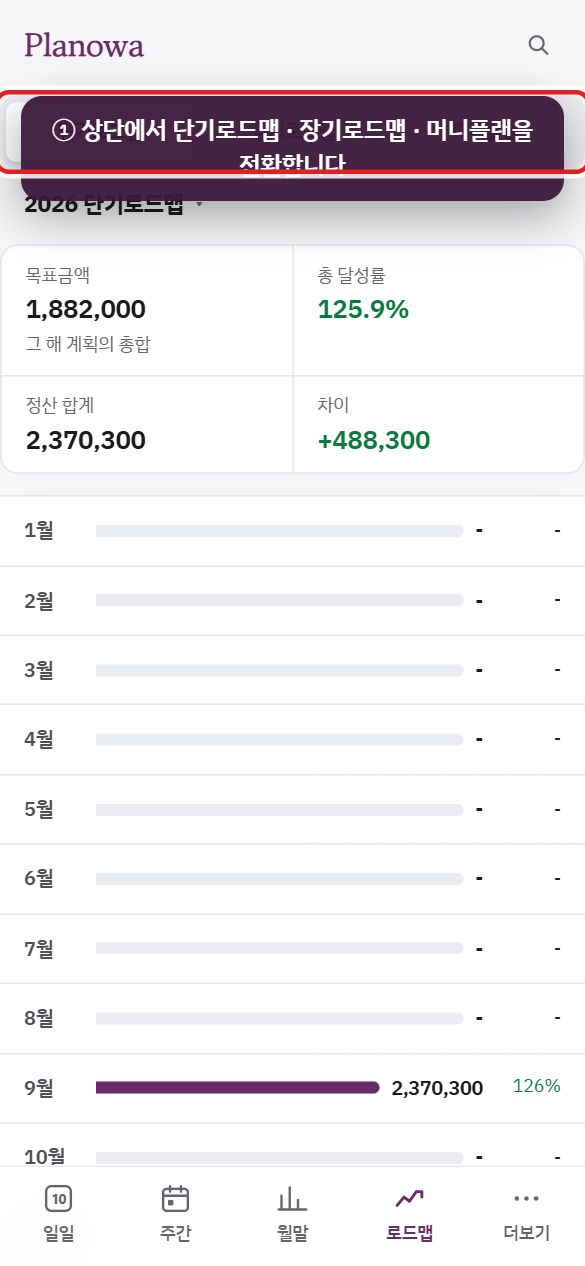
1상단에서 단기로드맵 · 장기로드맵 · 머니플랜을 전환합니다. 제목의 연도를 누르면 다른 해로.
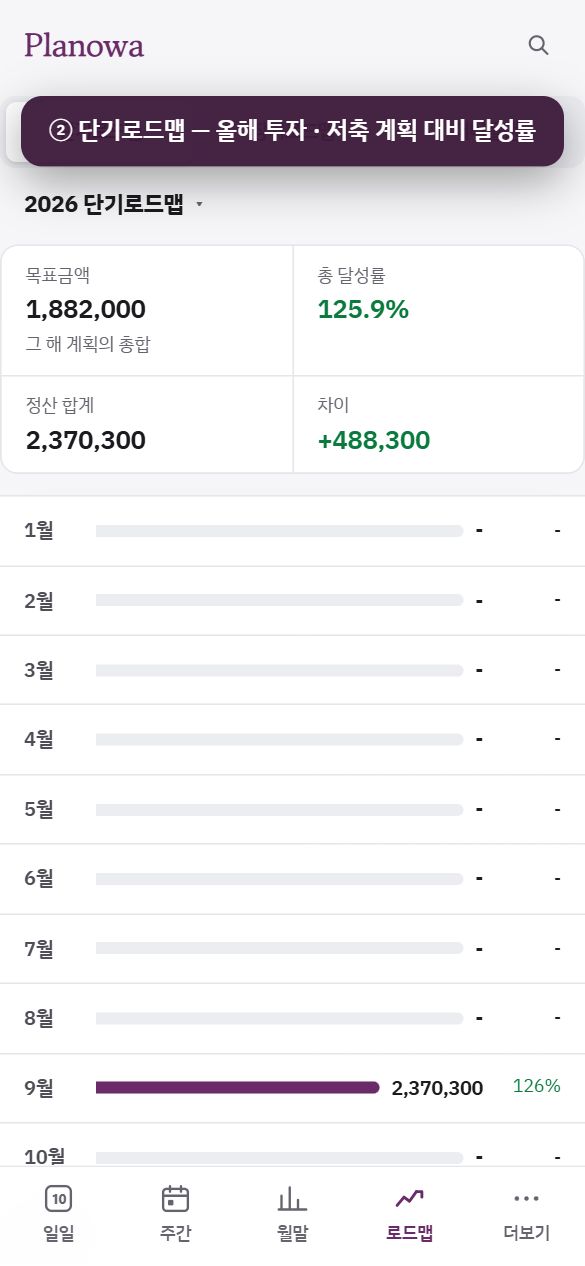
2단기로드맵 — 올해 투자 · 저축 계획 대비 달성률. 월말정산에서 자동으로 계산됩니다.
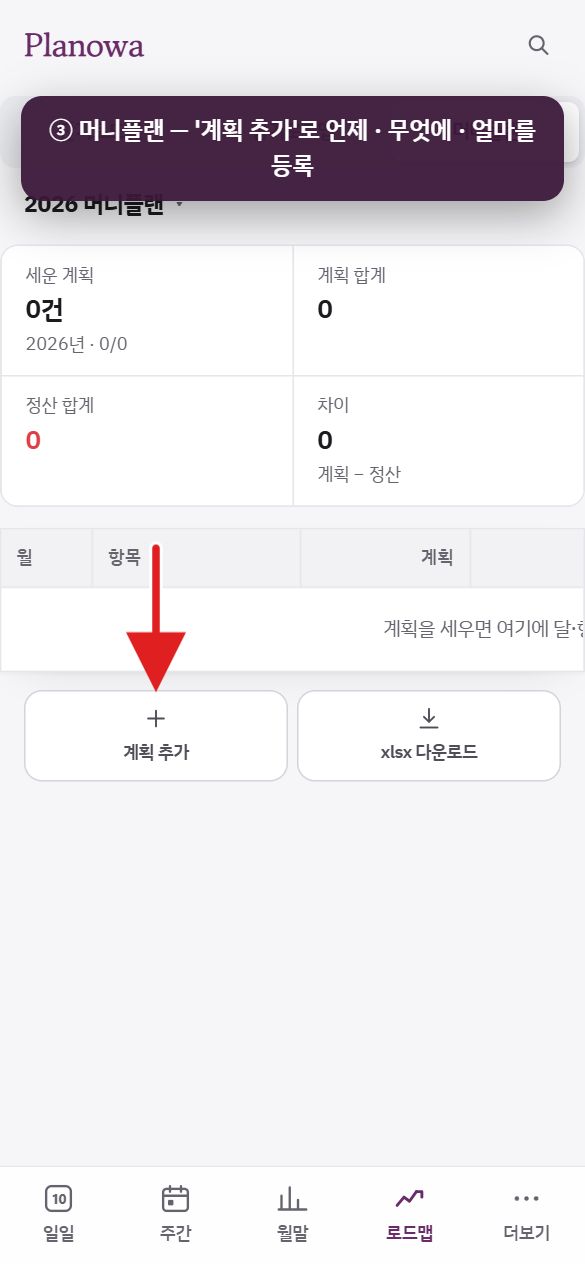
3머니플랜 — 계획 추가로 '언제 · 무엇에 · 얼마'를 등록하고, 이 달 반영으로 월 예산에 반영합니다.
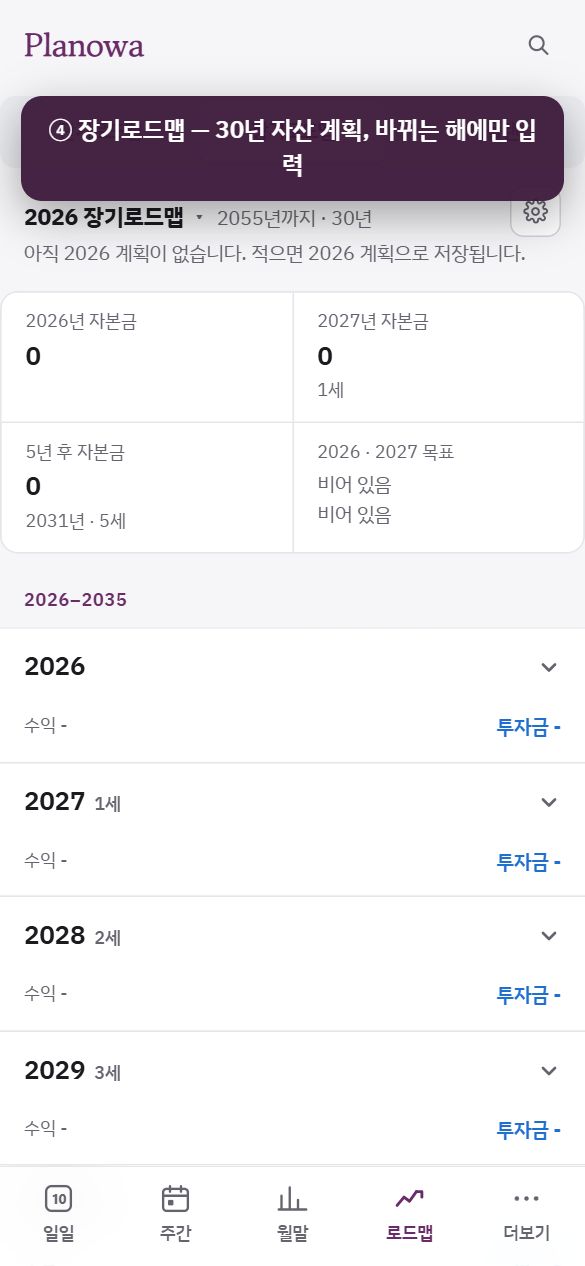
4장기로드맵 — 30년 자산 계획. 값이 바뀌는 해에만 입력하면 됩니다.
그림을 옆으로 밀어 다음 단계를 봅니다.
단기로드맵 — 올해 투자 · 저축 계획 대비 실적
계획 = 해당 월의 투자/저축 예산, 정산 = 해당 월의 실제 기록입니다. 둘 다 월말정산에서 자동으로 계산되므로 이 화면에서 따로 입력할 내용은 없습니다.
상단 요약 — 목표금액(해당 연도 계획 총합) · 정산 합계 · 차이 · 총 달성률. 월을 선택하면 예적금 · 수익이 펼쳐집니다.
차트 — 월별(막대 아래는 해당 월 달성률) · 누적.
머니플랜 — 한 해 동안 "언제 · 무엇에 · 얼마"
+ 계획 추가(맨 위 제목 줄) — 날짜 · 항목 · 계획 금액 · 내용(예: 추석 부모님 용돈)을 입력합니다. 엑셀에서 날짜 · 항목 · 금액 · 내용 순서로 여러 줄을 복사해 붙여넣을 수도 있습니다.
휴대폰에서는 목록이 월별 카드로 묶입니다. 계획마다 항목과 계획 금액이 보이고, 그 아래에 예산 · 정산 · 차액이 표시됩니다. 계획 금액을 선택하면 해당 계획 목록이 열리고(수정 · 삭제), 정산 금액을 선택하면 해당 월 해당 항목의 실제 기록이 열립니다.
계획은 저장만으로는 예산에 반영되지 않습니다. 월 카드의 이 달 반영을 선택하면 그 달 항목 예산이 계획 금액으로 맞춰지며, 반영이 끝난 달에는 반영됨이 표시됩니다(컴퓨터 표에서는 묶음마다 예산으로 넣기 · 모두 넣기).
경조사 계획은 달력에도 ◇로 표시됩니다(아직 지출하지 않은 금액이므로 합계에는 포함되지 않음).
장기로드맵 — 30년 자산 계획
상단 설정 — 기준 연도 · 기준 연령 · 기초 투자가능자산 · 기초 부동산 평가액. 기준 연령을 변경하면 이후 30년의 나이가 한 번에 다시 계산됩니다.
부동산 On/Off — 기초 부동산 평가액 옆 버튼입니다. Off로 하면 부동산상승률 · 부동산 줄이 표 · 카드 · 이미지 · xlsx 어디에서나 숨겨지고 자본금에서도 부동산이 빠집니다. 입력한 값은 그대로 남아 On으로 바꾸면 다시 나타납니다.
연도별 한 줄 — 연도 · 나이 · 투자가능자산 · 연저축액 · 계 · 수익률 · 수익금 · 투자금 · 비유동자산 · 부동산상승률 · 부동산 · 자본금 · 라이프플랜(결혼 · 이사 등 메모) · 머니플랜(해당 연도의 큰 지출).
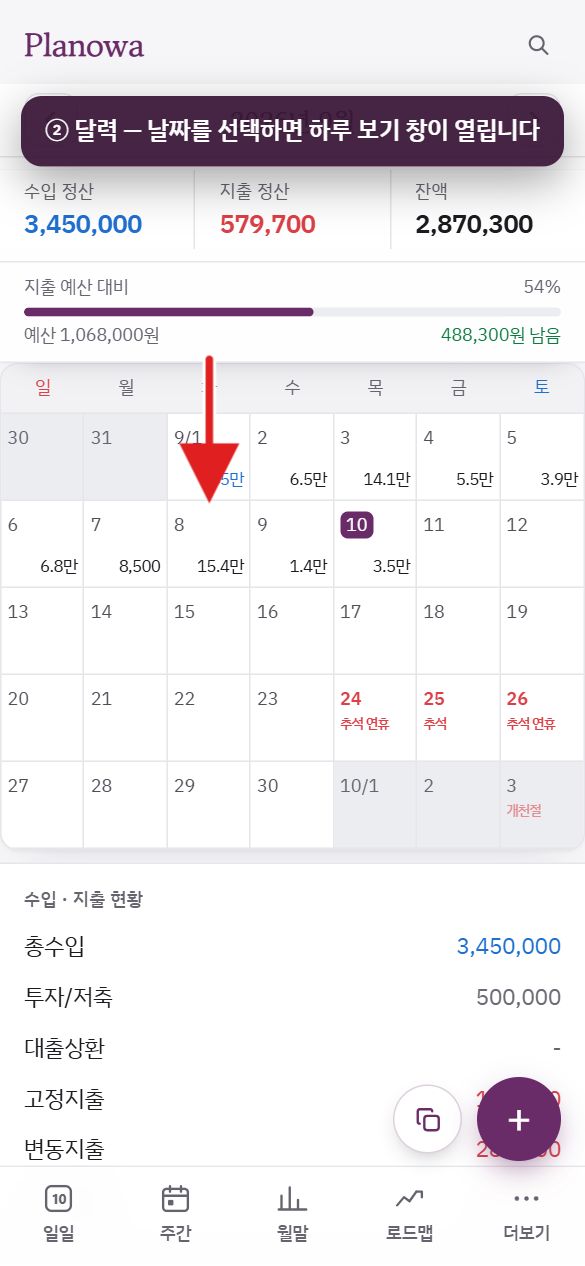
2달력 — 지출 · 감정 · 투두 · 공휴일이 날짜 칸에 표시되고, 날짜를 선택하면 하루 보기 창이 열립니다.
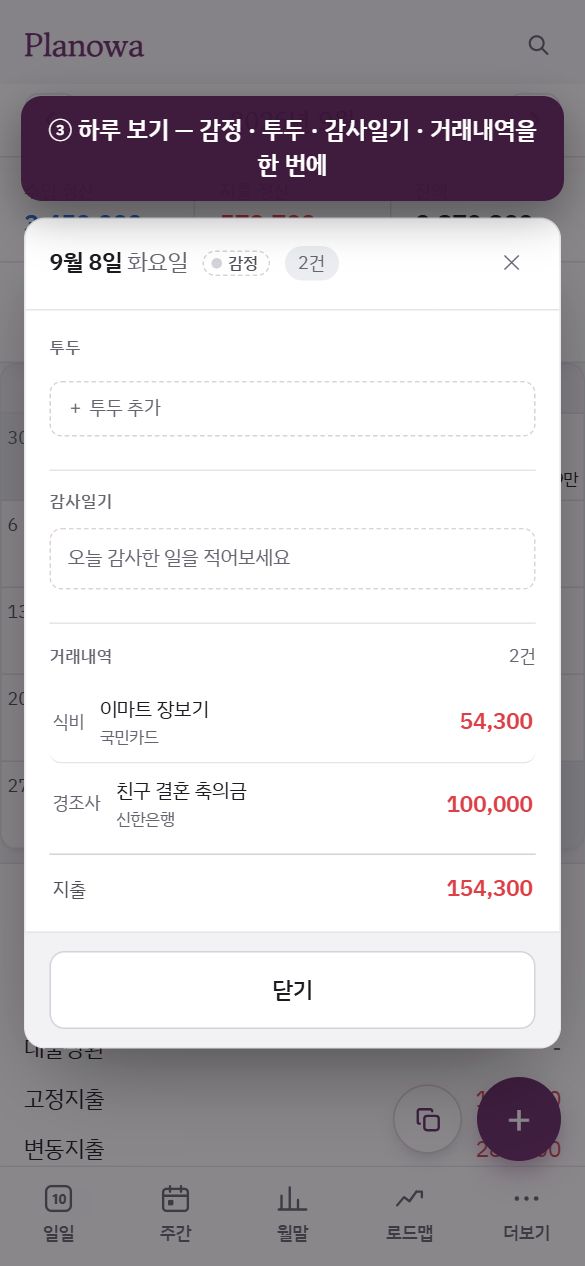
3하루 보기 — 그날의 감정 · 투두 · 감사일기 · 거래내역을 한 번에 보고 고칩니다.
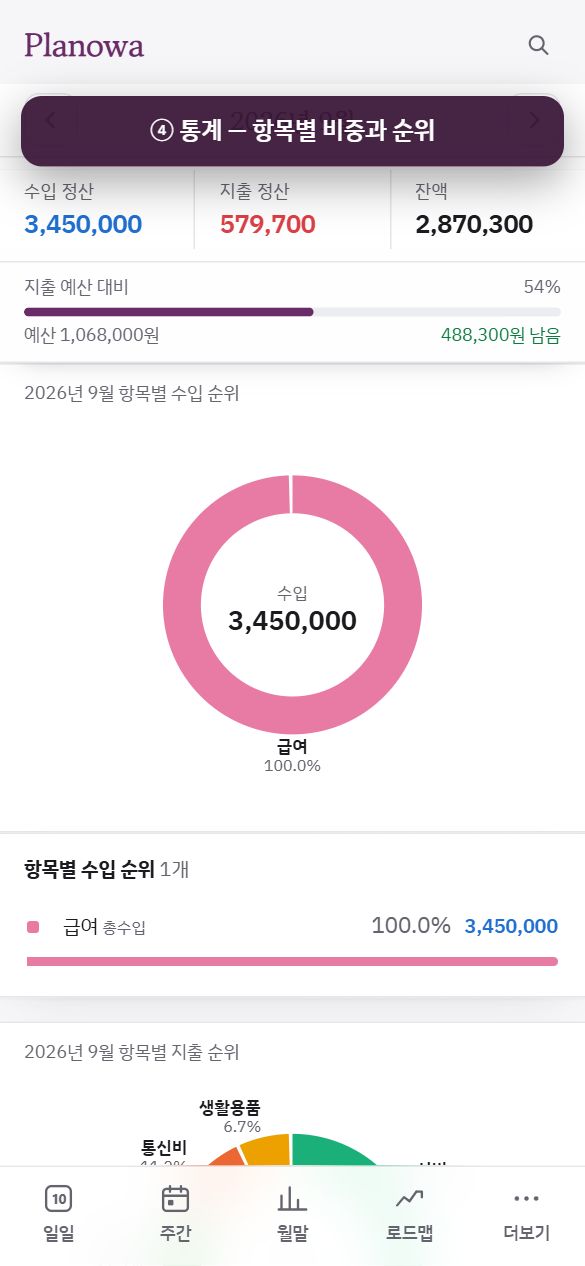
4통계 — 항목별 수입 · 지출 비중과 순위, 자산별 지출.
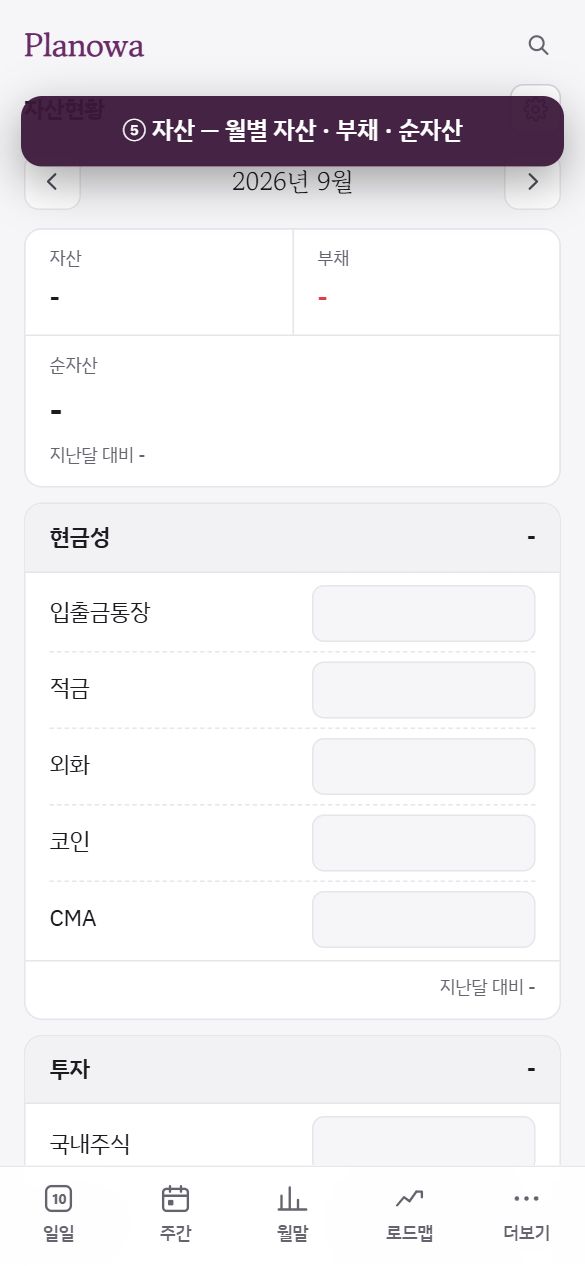
5자산 — 월별 자산 · 부채 · 순자산. 금액 칸을 눌러 그 달 값을 입력합니다.
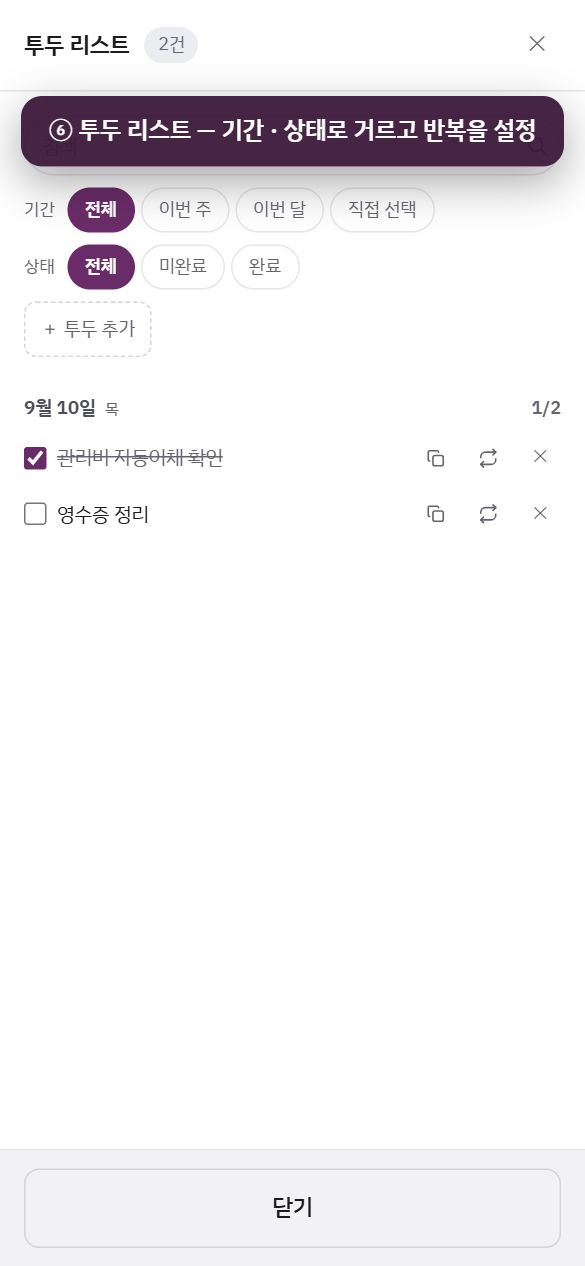
6투두 리스트 — 기간 · 상태로 거르고, 복사 · 반복을 설정합니다.
그림을 옆으로 밀어 다음 단계를 봅니다.
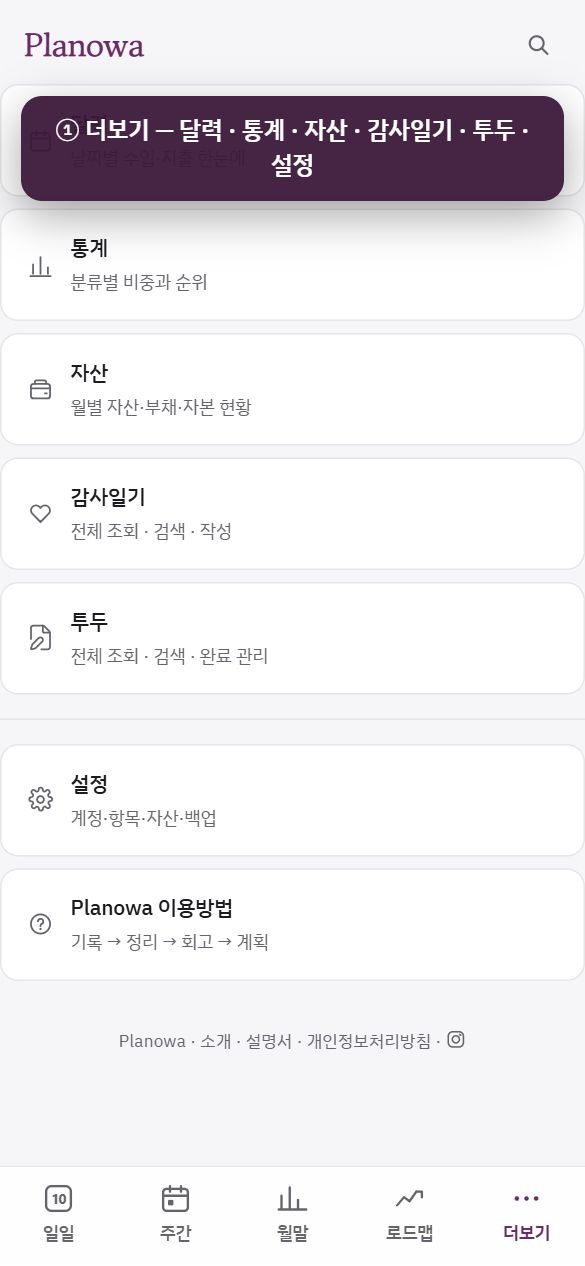
달력날짜별 지출 · 감정 · 감사 · 투두를 한눈에
통계항목별 비중과 순위, 자산별 지출
자산월별 자산 · 부채 · 순자산 현황
감사일기전체 조회 · 검색 · 작성
투두전체 조회 · 검색 · 완료 관리 · 반복
설정 · 이용방법계정 · 항목 · 자산 · 백업, 앱 내 요약 가이드
더보기 화면은 세 묶음의 목록입니다. 바로가기(달력 · 통계 · 자산 · 감사일기 · 투두), 설정(일반 · 계정 · 항목 · 자산 등 설정 메뉴가 하나씩 바로 나열되어, 선택하면 그 메뉴가 곧바로 열리고 ←로 더보기에 돌아옴), 도움말(Planowa 이용방법). 맨 아래 줄에서 개인정보처리방침 등을 열 수 있습니다.
달력
날짜 칸에는 해당 일의 지출 금액 · ♥(감정을 선택한 날은 해당 감정 색, 감사일기만 있으면 강조색) · 투두(휴대폰은 하트 아래 완료/전체 — 예) 1/3, 컴퓨터는 ✓N; 모두 완료하면 색이 바뀜) · 공휴일 이름 · ◇ 계획만 표시됩니다. 휴대폰 달력 화면에는 달력 아래의 수입 · 지출 현황 · 오늘의 감사 · 오늘의 투두 카드가 표시되지 않습니다(일일 탭에서 사용).
날짜를 선택하면 하루 보기 창이 열립니다 — 상단의 감정 표시(그날의 감정 선택), 계획, 투두(추가 · 완료 · 수정), 감사일기(선택해 작성 · 수정), 거래내역과 수입 · 지출 · 차액. 지난 날짜의 투두와 감사일기는 이 창에서 입력합니다.
달력 아래 이 달의 감정 카드 하나 — 제목 줄 오른쪽의 그림 보기(한 달의 감정을 빛의 고리로 표현한 이미지, 저장 · 공유 가능)와 그 아래 이 달의 감정들이 표시됩니다.
통계
항목별 수입 비중 도넛 · 지출 비중 도넛과 순위 목록(비율 · 금액). 조각이나 항목을 선택하면 해당 월 해당 항목의 내역이 열립니다.
자산별 지출 — 어느 카드 · 계좌에서 얼마가 지출되었는지 보여 줍니다.
자산 — 월별 자산현황
상단의 ‹ 월 ›로 월을 이동하며, 자산 · 부채 · 순자산과 지난달 대비 증감이 표시됩니다.
구분 카드(현금성 · 투자 · 비유동 · 부채 등) 안의 금액 칸을 선택해 해당 월의 값을 입력합니다. 빈 칸에 흐리게 보이는 숫자는 지난달 값입니다. 수식(1000+500) 입력도 가능합니다.
오른쪽 위 톱니 아이콘 항목 설정 — 구분 · 항목 추가, 이름 · 순서 변경, 자산/부채 구분, 투자가능(투자가능자산계에 포함) · 신용(투자가능자산계 − 신용대출 계산에 사용) · 참고(표에만 표시되고 합계에서 제외) 설정, 합계 줄 이름.
전년 12월 칸은 지난해 자산현황의 12월 값을 자동으로 가져옵니다. 이미지 저장 · xlsx 다운로드는 12개월 표 전체를 저장합니다.
감사일기 전체
더보기 › 감사일기(또는 오늘의 감사 카드 제목)로 여는 감사일기 창입니다. 검색 · 기간(전체 · 이번 주 · 이번 달 · 직접 선택)으로 조건을 지정합니다.
글은 줄로 나뉜 목록으로 최근 날짜부터 15건씩 표시되며 N일 더 보기로 이어서 볼 수 있습니다. 검색은 내용에서만 찾으며, 단어가 여러 개면 모두 포함된 글만 표시합니다.
한 줄을 선택하면 목록 안 그 자리에서 펼쳐져 고칠 수 있습니다 — 감정(이름과 함께 열 가지) · 내용 · 삭제취소저장. 목록은 그대로 남아 있습니다. 새로 쓰려면 + 감사일기 쓰기.
투두 리스트
검색 · 기간(전체 · 이번 주 · 이번 달 · 직접 선택) · 상태(전체 · 미완료 · 완료)로 조건을 지정합니다. 날짜 제목을 선택하면 해당 일의 하루 보기 창이 열립니다.
줄 끝 버튼 — 복사(같은 할 일을 오늘 날짜로 새로 등록), 반복(안 함 · 매일 · 매주 · 2주마다 · 매월 · 매년 + 반복 종료일), ✕(삭제). 반복 투두는 한 달 앞까지 미리 생성되며, 삭제하거나 수정할 때 이 투두만 / 이후 모두 중에서 선택합니다.
앱(iPhone · Android)은 시간을 입력한 투두를 해당 시각에 알려 줍니다(설정 › 알림).
Planowa 이용방법
앱 안에서 보는 간단 안내(여섯 단계와 화면 예시)입니다. 이 설명서의 요약판으로 보시면 됩니다. 아래의 소개는 planowa.com/about으로, 개인정보처리방침도 여기에서 열 수 있습니다.
2.7설정 — 메뉴별 설명
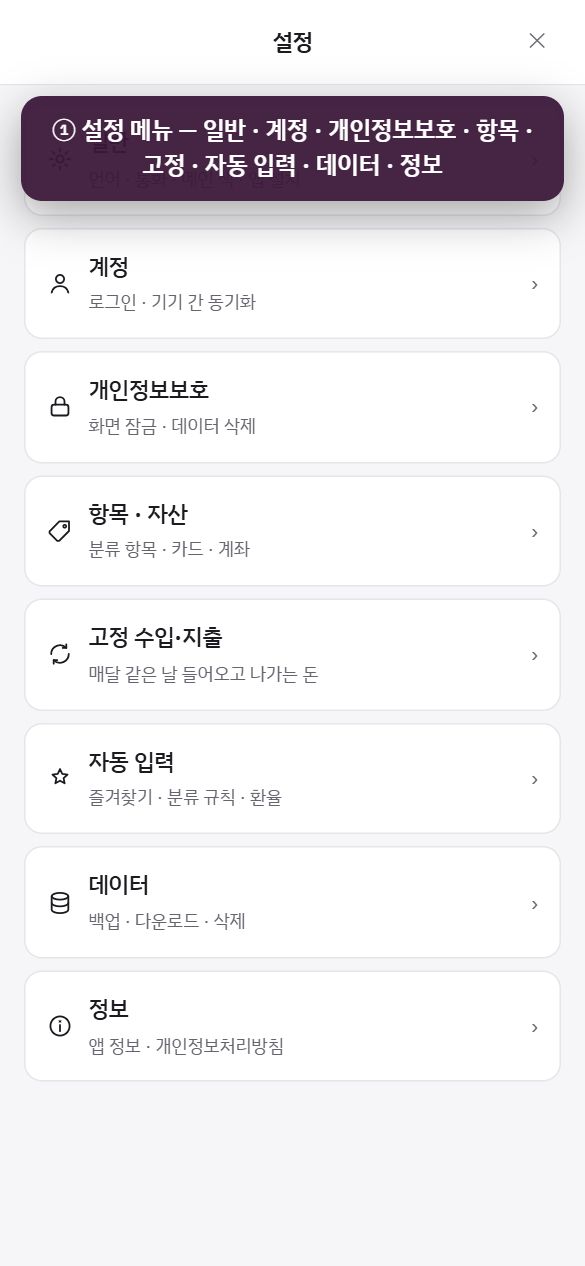
1설정 메뉴 — 일반 · 계정 · 개인정보보호 · 항목 · 자산 · 고정 수입 · 지출 · 자동 입력 · 데이터 · 정보.
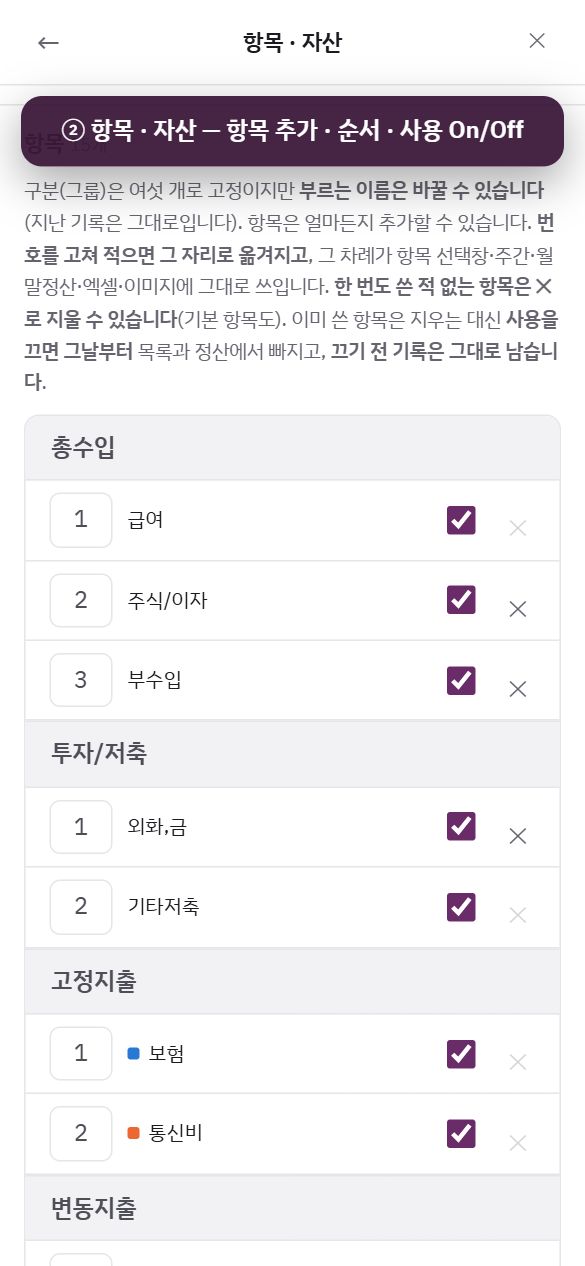
2항목 · 자산 — 항목 추가, 순서 번호, 사용 On/Off. 자산은 카드 · 계좌 이름.
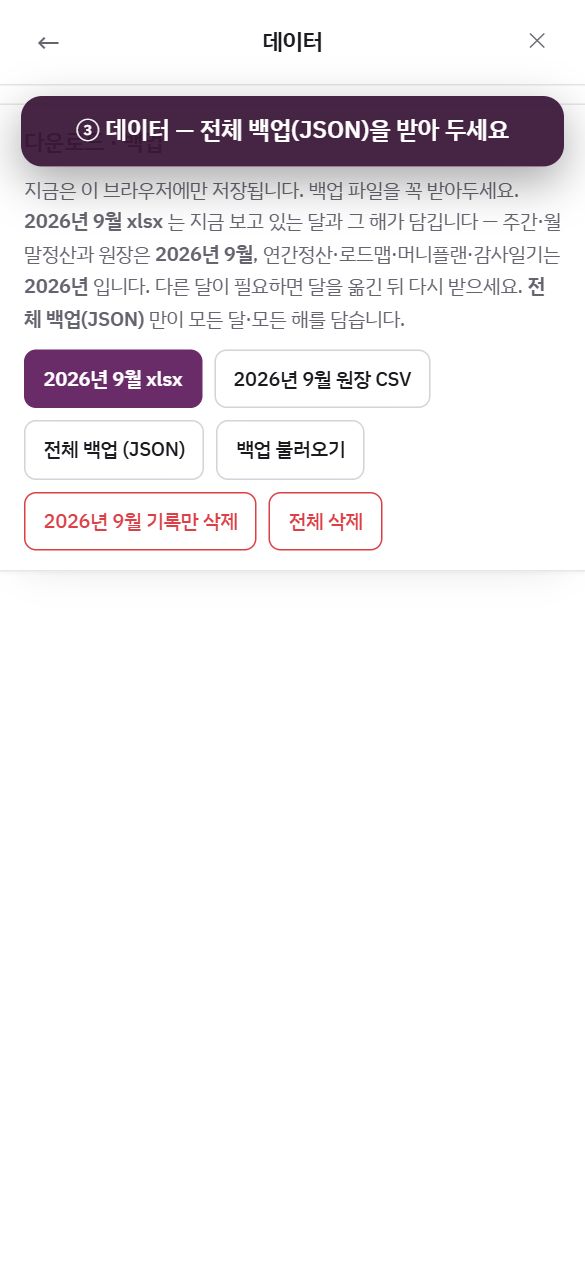
3데이터 — xlsx · CSV · 전체 백업(JSON). 로그인하지 않았다면 백업을 꼭 받아 두세요.
그림을 옆으로 밀어 다음 단계를 봅니다.
휴대폰에서는 더보기의 설정 묶음에 메뉴가 하나씩 나열되어 있습니다. 메뉴를 선택하면 해당 설정 화면이 바로 열리고(더보기와 같은 둥근 카드 모양), ←로 더보기에 돌아옵니다.
메뉴
포함된 기능
일반
언어(한국어 · 영어) · 글자 크기(100% · 크게 · 더 크게, 기본 100% — 컴퓨터에서는 화면 전체가 함께 커짐, 로고와 하단 탭 이름은 그대로, 현재 기기에만 적용) · 표시 통화(₩ · $, 환산 없음) · 국가(공휴일 붉은색 표시) · 공휴일(표시할 국가) ·
기능 설정(감사일기 · 투두 끄기 — 기존 기록은 유지되며 다시 켜면 이어서 사용) · 메인 색(에그플랜트 · 딥 퍼플 · 와인 · 인디고; 밝기 · 다크 모드는 기기 설정을 따름) ·
앱으로 설치(브라우저에서 홈 화면에 추가) · 클립보드 자동 확인(2.1 A 참고).
알림 앱 전용(iPhone · Android 1.1.0 이상)
투두 알림(시간을 입력한 투두를 해당 시각에 알림) · 투두 미리 알림(정시 · N분 전) · 월말정산 알림(매달 지정한 날짜 · 시각; 마감 피드백을 작성하면 그 달은 중지되고, 작성하지 않으면 다음 달 말일에 한 번 더 알림).
알림은 휴대폰 안에서만 예약되며 투두 내용은 서버로 전송되지 않습니다. 허용 설정은 휴대폰 설정 › 앱 › Planowa › 알림에서 합니다. Android는 투두 시각에 맞춰 울리도록 '알람 및 리마인더' 허용을 한 번 더 묻습니다.
계정
로그인 방식(카카오 · Google · Apple) · 로그인한 계정 · 지금 동기화 · 마지막 동기화 · 로그아웃(기기의 기록은 유지) · 계정 삭제(DELETE 입력으로 확인; 서버 기록은 삭제되고 기기의 기록은 유지).
개인정보보호
화면 잠금 — 비밀번호 4자리 설정 · 변경 · 해제. 켜면 앱을 열 때마다 비밀번호를 묻고, 앱을 1분 이상 벗어났다 돌아와도 다시 묻으며 벗어나 있는 동안 화면을 가립니다. 화면 가림 기능이며 기록 자체를 암호화하지는 않습니다.
생체 인식 잠금 해제(iPhone 은 Face ID · Touch ID, Android 는 지문 · 얼굴 인식 — 앱에서 비밀번호 설정 후) · 계정 및 데이터 삭제 안내.
항목 · 자산
항목 표 — 구분 이름 변경(표시 이름만), 항목 추가, 순서 번호를 수정하면 해당 위치로 이동(이 순서가 선택 창 · 정산 · 엑셀에 적용), 사용 On/Off(끈 날부터 목록 · 정산에서 제외되며 기존 기록은 유지), 한 번도 사용하지 않은 항목은 ✕로 삭제.
자산 — 카드 · 계좌 이름. 문자의 카드사 이름과 같게 등록하면 자동으로 연결됩니다.
고정 수입 · 지출
매달 며칠 · 내용 · 구분/항목 · 자산 · 금액(실제 금액). 매달 해당 날짜에 가계부에 자동 등록되며(등록한 날 이후, 없는 날짜는 말일, '고정' 표시), 주간정산에서는 해당 주 예산에 반영됩니다. 예산이 아닌 정산 금액을 입력하세요. 예산은 월말정산에서 입력합니다.
자동 입력
즐겨찾기 목록(수정 · 삭제) · 자동 분류 규칙(가맹점 → 항목, 입력 결과에서 항목을 수정할 때마다 추가됨) · 해외 결제 환율(환율 새로고침 · 수수료 배수 · 통화 직접 추가).
데이터
{이번 달} xlsx(현재 보고 있는 월과 해당 연도 — 주간 · 월말정산 · 원장은 해당 월, 연간정산 · 로드맵 · 머니플랜 · 감사일기는 해당 연도) · 원장 CSV ·
전체 백업(JSON)(모든 월 · 모든 연도를 담는 유일한 파일) · 백업 불러오기(같은 월은 덮어씀) ·
이 달 기록만 삭제(감사일기 · 감정 · 투두는 유지) · 전체 삭제(복구 불가).
정보
앱 정보 · Planowa 이용방법 · 사용 설명서 · 개인정보처리방침 · 인스타그램.
백업을 주기적으로 받아 두세요로그인하지 않은 경우 기록은 현재 기기에만 저장됩니다. 휴대폰을 교체하거나 브라우저 데이터를 삭제하면 기록이 사라지므로 설정 › 데이터 › 전체 백업(JSON)을 받아 두거나 로그인해 두시기 바랍니다.
3장
데스크톱(웹) 매뉴얼웹 전용
컴퓨터 브라우저에서 planowa.com에 접속하면 넓은 표 중심의 화면으로 표시됩니다. 휴대폰과 같은 계정으로 로그인하면 기록이 그대로 이어집니다. 휴대폰과 동일한 기능은 2장을 참고하시고, 이 장에서는 다른 점만 안내합니다.
planowa.com
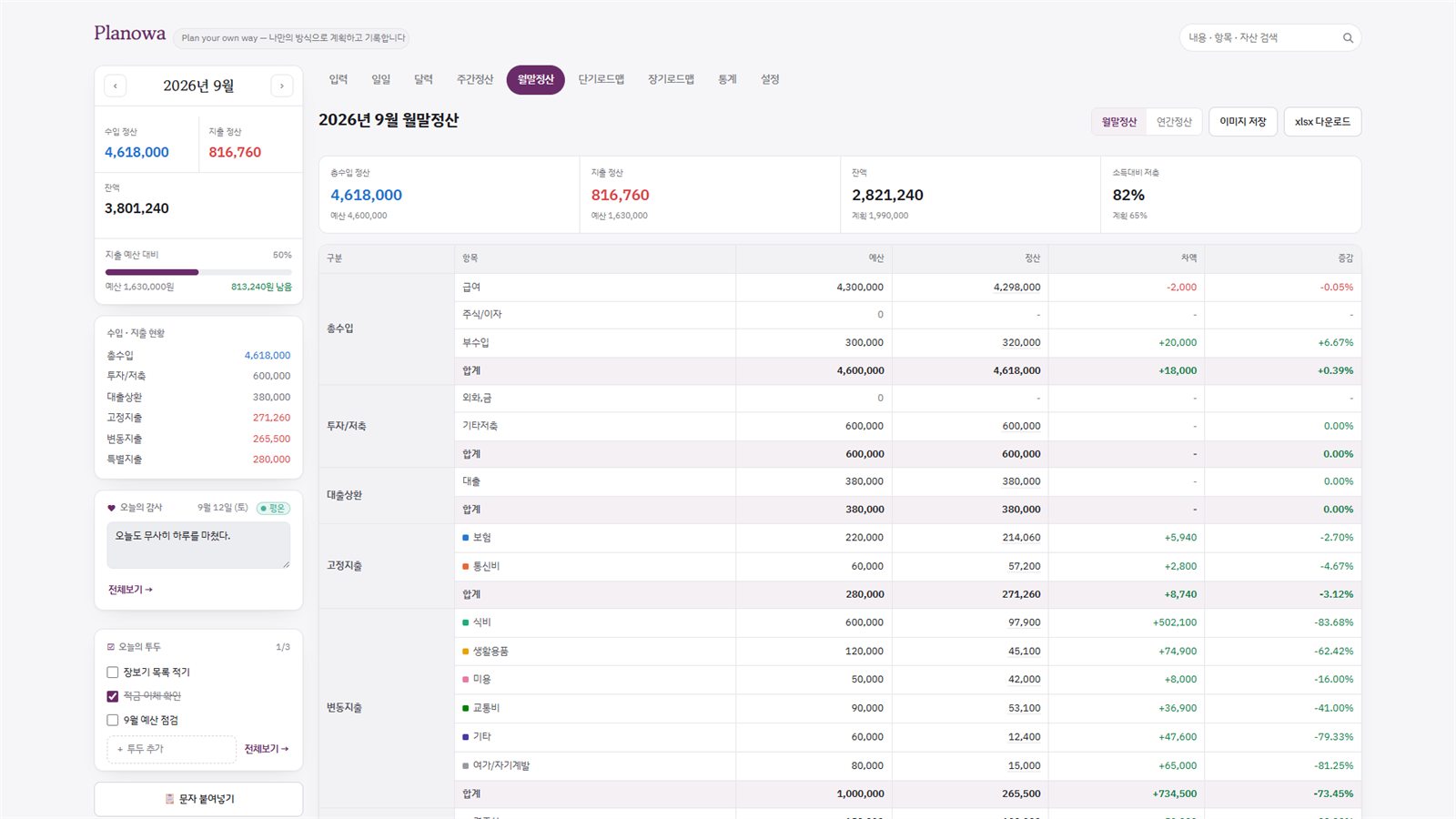
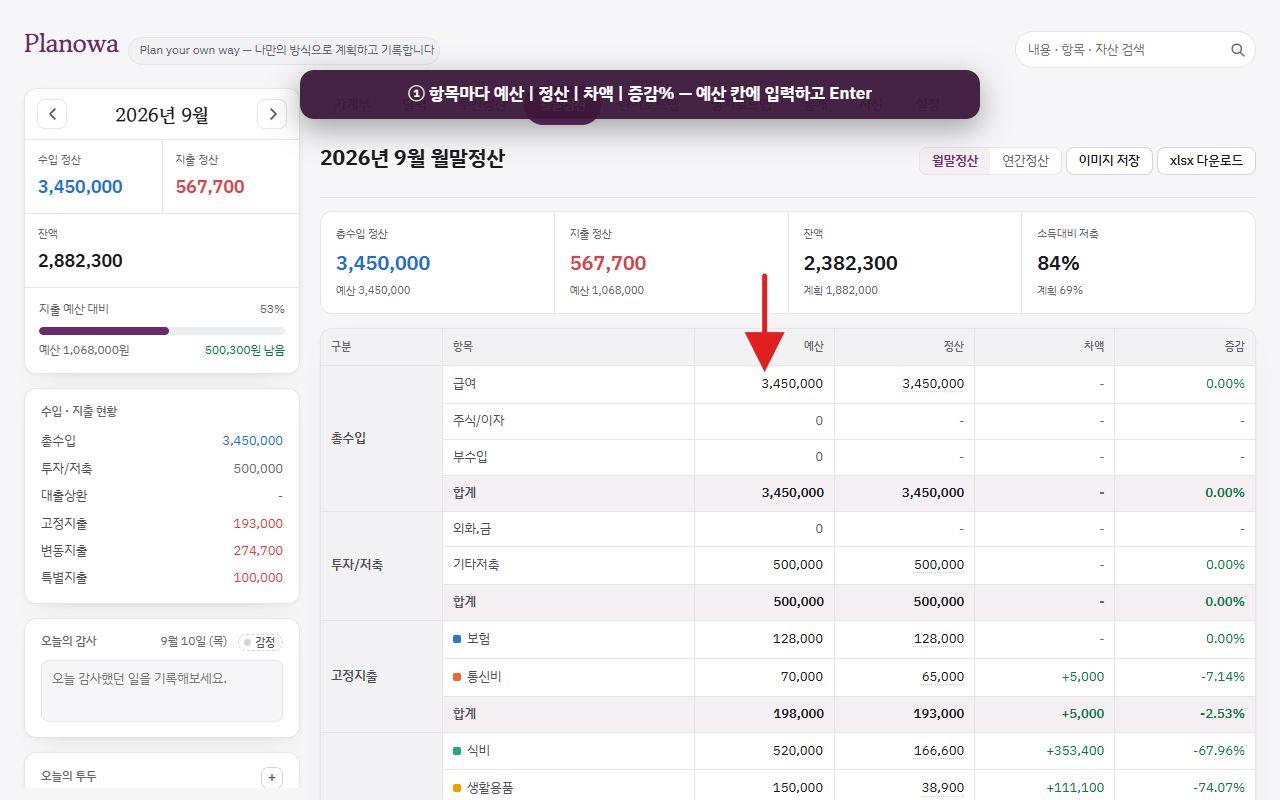
왼쪽 요약 패널 + 상단 탭 + 넓은 표월말정산 화면입니다. 예산 칸에 바로 입력하고 Enter로 저장합니다.
3.1화면 구성
영역
내용
상단
로고(선택하면 홈으로 이동) · 검색창(전체 기간, 관련 단어 제안, ✕로 지우기).
왼쪽 패널
월 이동과 연 · 월 선택 · 수입 정산 · 지출 정산 · 잔액 · 지출 예산 대비 막대 · 수입 · 지출 현황 · 오늘의 감사 · 오늘의 투두 · 붙여넣기+ 입력 버튼.
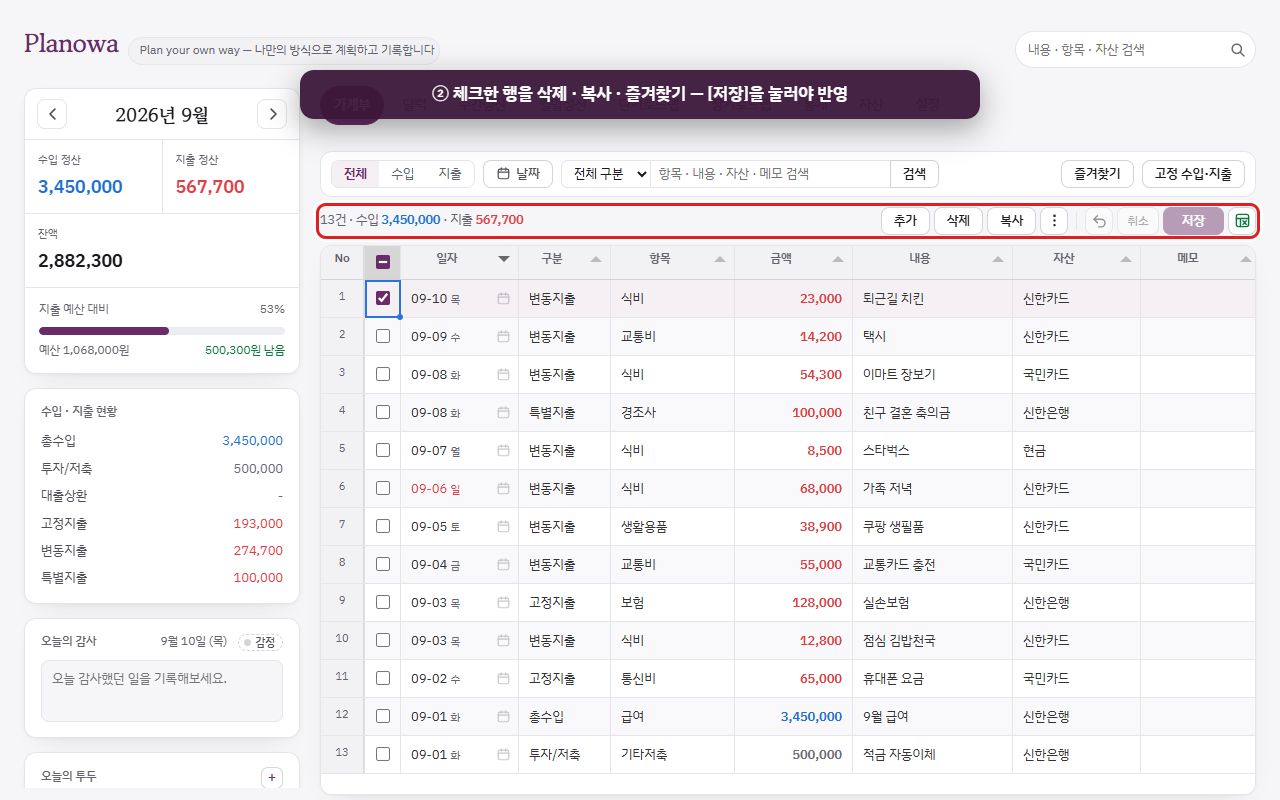
2왼쪽 체크 박스로 행을 고르면 삭제 · 복사 · 즐겨찾기 · 고정 수입 · 지출 추가가 켜집니다. 저장을 눌러야 반영됩니다.
그림을 옆으로 밀어 다음 단계를 봅니다.
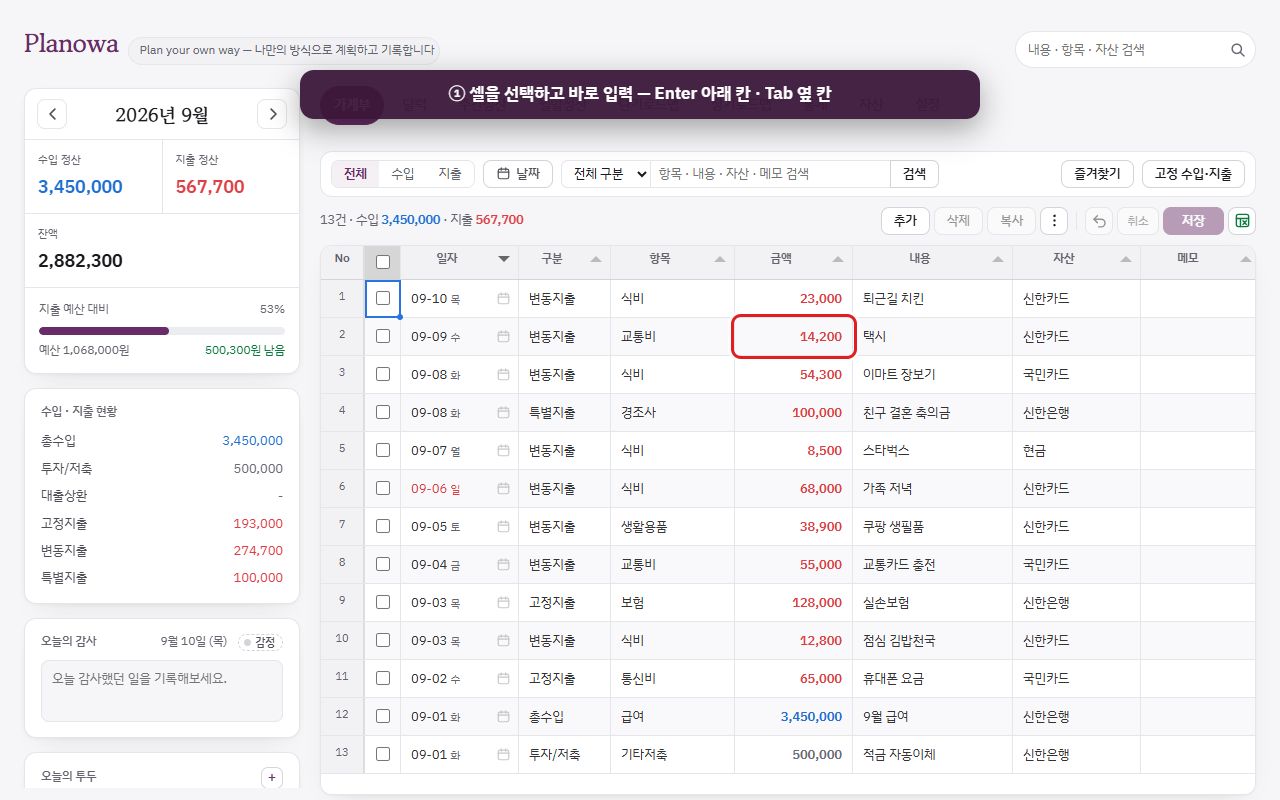
휴대폰의 '일일' 목록이 컴퓨터에서는 표(그리드)로 표시됩니다. 열 구성은 No · 체크 · 일자 · 구분 · 항목 · 금액 · 내용 · 자산 · 메모입니다.
작업
방법
입력
셀을 선택하고 바로 입력합니다. Enter 아래 셀 · Tab 옆 셀 · Esc 취소. 두 번 클릭하거나 Enter로 수정합니다. 일자는 달력 아이콘으로도 선택할 수 있습니다.
새 행
추가 버튼을 누르거나, 엑셀에서 여러 줄을 복사해 표에 붙여넣습니다(Ctrl+V). 줄마다 새 행이 됩니다. 날짜는 2026-01-01 · 2026.1.1 · 01/01 · 1/1 형식을 모두 인식하며, 항목 이름이 목록에 없으면 붉은색으로 표시됩니다.
범위 · 복사
드래그하거나 Shift로 범위 선택 · Ctrl+C / Ctrl+V · Delete 셀 비우기 · Ctrl+Z 되돌리기.
행 관리
왼쪽 체크 박스로 행을 선택한 뒤 삭제 · 복사(새 행으로) · ⋮ 메뉴의 즐겨찾기 추가 · 고정 수입 · 지출 추가(일자의 날이 '매달 며칠'이 됨)를 선택합니다.
즐겨찾기 · 고정 목록
즐겨찾기 · 고정 수입 · 지출 버튼으로 목록을 열고 넣기를 선택하면 표에 새 행이 만들어집니다(즐겨찾기는 오늘 날짜, 고정은 해당 월의 해당 날짜).
조건 검색
표 위 검색 줄 — 날짜 · 수입/지출 · 구분 · 검색어(항목 · 내용 · 자산 · 메모, ✕로 지우기).
저장
[저장]을 눌러야 반영됩니다. 저장하지 않은 변경 건수(추가 · 수정 · 삭제)가 상단에 표시되며, 붉은 셀(날짜 · 항목 · 금액 누락)은 수정해야 저장됩니다. 취소는 모든 변경을 되돌립니다. 저장하지 않고 다른 탭으로 이동하면 확인 창이 표시됩니다.
다운로드
엑셀 다운로드 — 표시된 행만 xlsx로 저장합니다.
결제 문자 한두 건은 왼쪽 패널의 붙여넣기 · + 입력 창이 더 빠릅니다(휴대폰과 동일한 창, 2.1 참고). 기록이 하나도 없으면 표 위에 "첫 기록을 남겨 보세요" 안내가 표시됩니다.
3.3달력 · 감사 · 투두
달력 칸이 휴대폰보다 넓어 금액이 모두 표시됩니다. 날짜를 선택하면 하루 보기 창이 열립니다(2.6과 동일).
오늘의 감사 · 오늘의 투두는 왼쪽 패널 카드에서 바로 작성하며, 전체보기 →로 전체 목록 · 검색 · 반복 설정을 열 수 있습니다.
3.4주간정산 표
구분 · 항목 × 주별(예산 · 정산) + 월 합계(예산 · 정산 · 차액)를 한 표에 표시합니다. 상단 요약 네 가지(주 수 · 지출 예산 · 지출 정산 · 차액)는 휴대폰과 동일합니다.
주 예산 칸은 월 예산을 자동 배분한 값(흐린 글씨)이며, 직접 입력하면 해당 주만 고정됩니다. 주 합계가 월 예산과 다르면 !가 표시됩니다.
정산 금액을 선택하면 해당 주 내역이, 월 합계 칸을 선택하면 해당 월 전체 내역이 열립니다. 이미지 저장 · xlsx 다운로드.
3.5월말정산 · 연간정산 표
1항목마다 예산 | 정산 | 차액 | 증감%. 예산 칸에 입력하고 Enter.
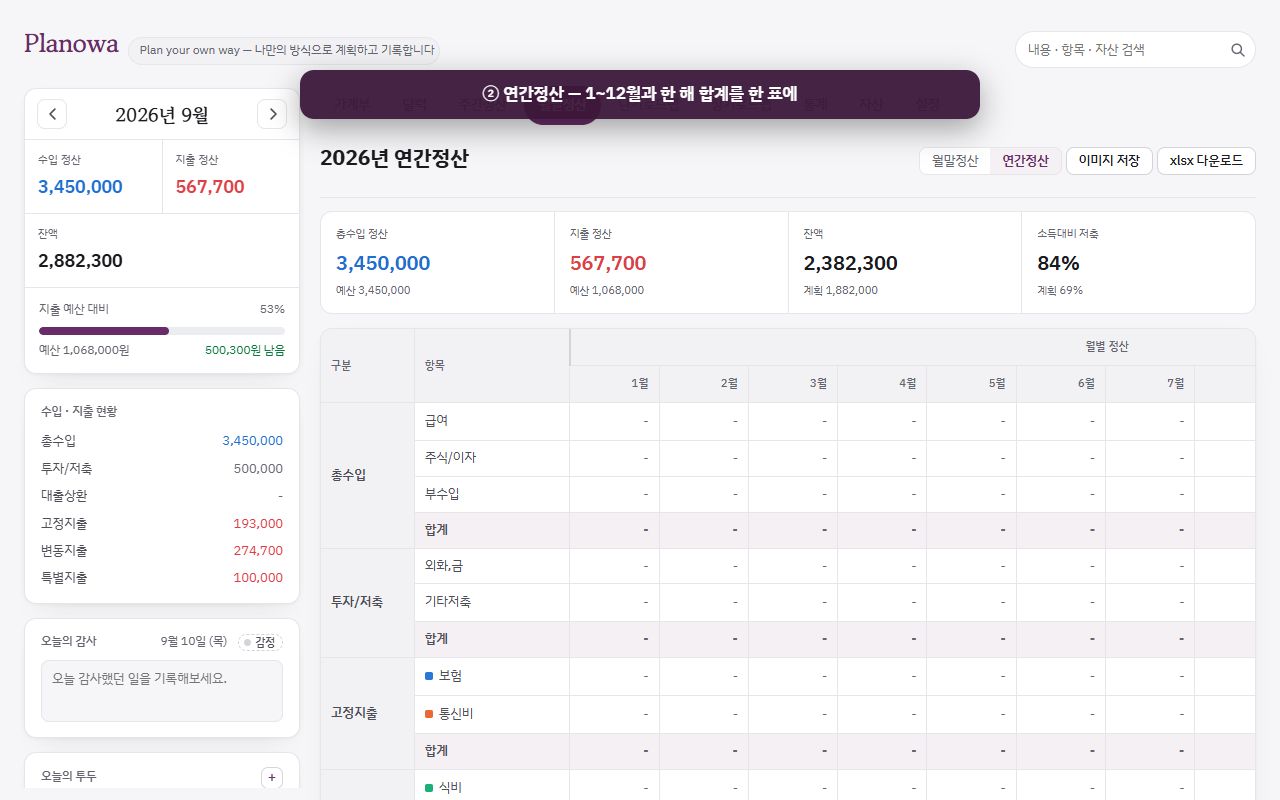
2연간정산 — 1~12월 정산과 한 해 합계를 한 표에. 월 칸을 누르면 그 달, 연 합계 정산을 누르면 한 해 내역.
그림을 옆으로 밀어 다음 단계를 봅니다.
항목마다 예산 | 정산 | 차액 | 증감%를 표시합니다. 예산 칸에 값을 입력하고 Enter를 누르면 저장됩니다. 증감률은 예산 대비 정산 비율입니다.
엑셀에서 여러 줄을 복사해 예산 칸에 붙여넣을 수 있습니다. 항목 열을 함께 복사하면 이름을 기준으로 알맞은 줄에 입력되고, 예산 열만 복사하면 붙여넣은 셀부터 아래로 채워집니다.
정산 금액을 선택하면 해당 항목의 내역이 열립니다. 아래의 이 달의 목표 · 마감 피드백과 자동 요약은 휴대폰과 동일합니다.
연간정산 — 항목 × 1~12월 + 연 합계(예산 · 정산 · 차액)를 한 표에 표시합니다. 월 칸을 선택하면 해당 월 해당 항목의 내역이, 연 합계의 정산 칸을 선택하면 한 해 전체(1~12월) 내역이 열립니다. 12개월의 목표 · 피드백 모아보기와 한 해 돈의 흐름 차트를 제공합니다.
3.6단기로드맵 · 머니플랜
단기로드맵은 월이 열인 표(계획 · 정산 각각 예적금 · 수익 · 합계, 달성률 줄)로, 다운로드되는 xlsx 시트와 같은 구성입니다. 화면 안에서 단기로드맵머니플랜을 전환합니다.
머니플랜 표 — 월 · 항목 · 계획 · 예산 · 정산 · 차액. 계획 추가 창에서 한 건씩 입력하거나 엑셀 여러 줄을 붙여넣고, 묶음마다 예산으로 넣기를 선택합니다(2.5 참고).
3.7장기로드맵
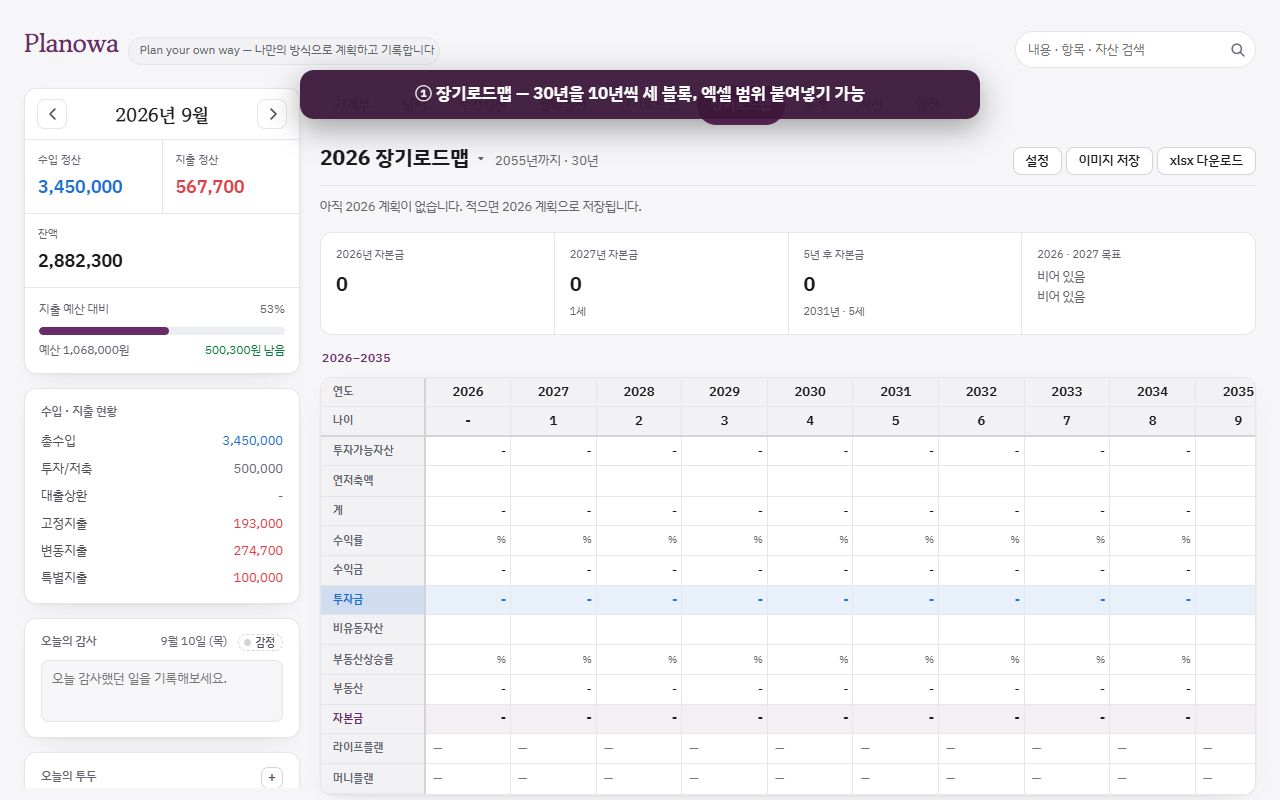
1장기로드맵 — 30년을 10년씩 세 블록으로. 엑셀에서 선택한 범위를 그대로 붙여넣을 수 있습니다.
그림을 옆으로 밀어 다음 단계를 봅니다.
30년을 가로 10년씩 세 블록으로 배치한 표입니다(엑셀 시트와 같은 양식). 입력 칸은 값이 바뀌는 해에만 입력하며, 비워 두면 직전 연도 값을 이어받습니다.
엑셀에서 선택한 범위를 그대로 붙여넣을 수 있습니다. 계 · 수익금 · 투자금처럼 계산으로 산출되는 줄은 값이 있어도 무시됩니다.
상단 설정(기준 연도 · 기준 연령 · 기초 자산 · 부동산 On/Off), 제목을 선택해 연도 변경, 이미지 저장 · xlsx 다운로드.
3.8통계 · 자산
통계는 휴대폰과 동일합니다(수입 · 지출 도넛, 순위, 자산별 지출).
자산은 연 단위 표입니다 — 항목 × 1~12월 · 비고 · 전년 12월 · 증감. 월 칸에 직접 입력하거나(수식 가능), 엑셀에서 여러 셀을 복사해 월 · 비고 · 전년 12월 칸에 붙여넣을 수 있습니다. 합계 줄(투자가능자산계 · 자산 · 부채 · 자본 · 자본 증감액 · 전월대비 자본증감율 · 투자가능자산계 − 신용대출)은 자동으로 계산됩니다. 항목 설정은 2.6과 동일합니다.
3.9설정 창
상단 탭 설정을 선택하면 왼쪽 메뉴 + 오른쪽 내용으로 구성된 창이 열립니다(오른쪽 위에서 전체 화면 전환). 메뉴와 내용은 2.7과 동일하며, '알림'은 앱(iPhone · Android)에서만 제공됩니다.
3.10내보내기 안내
화면
저장 형식
가계부 표
표시된 행을 xlsx로 저장.
주간정산 · 월말정산 · 연간정산
이미지(PNG) · xlsx. 휴대폰에서는 이미지가 공유 창으로도 열립니다.
단기로드맵 · 머니플랜 · 장기로드맵 · 자산
이미지 · xlsx.
이 달의 감정
그림 보기 → 저장 · 공유.
설정 › 데이터
해당 월 xlsx(여러 시트) · 원장 CSV · 전체 백업(JSON).
4장
FAQFAQ
화면 잠금 비밀번호를 잊었습니다.
잠금 화면의 비밀번호를 잊으셨나요?를 선택하면 새 비밀번호를 설정할 수 있습니다. 화면 가림 용도이므로 기록은 그대로 유지됩니다.
문자를 붙여넣었는데 금액이나 날짜를 인식하지 못했습니다.
붉은색으로 표시된 입력란을 원문 문자를 참고해 입력하시면 됩니다. 카드사마다 문자 형식이 달라 처음 보는 형식은 인식하지 못할 수 있습니다. 항목을 수정해 두면 해당 가맹점은 다음부터 자동으로 분류됩니다.
항목이 선택 목록에서 사라졌습니다.
설정 › 항목 · 자산에서 해당 항목의 사용이 꺼져 있는지 확인하세요. 끈 날부터 목록과 정산에서 제외되며, 다시 켜면 복원됩니다. 기존 기록은 사라지지 않습니다. → 2.7 설정 › 항목 · 자산 설명 보기
월말정산에 예산을 입력할 항목이 보이지 않습니다.
월말정산에는 아직 기록이 없는 항목도 처음부터 모두 표시됩니다. 보이지 않는다면 두 가지를 확인하세요. ① 아래쪽 예산·정산 없는 항목 숨기기를 눌러 둔 상태라면 예산 넣을 항목 N개 더 보기로 다시 펼칩니다. ② 설정 › 항목 · 자산에서 사용이 꺼진 항목은 월말정산에 나타나지 않습니다. 구분 제목을 선택하면 그 구분의 항목을 접고 펼칠 수 있습니다. → 2.4 월말 탭 설명 보기
해외 결제 금액이 카드 청구 금액과 다릅니다.
환산 금액은 설정 › 자동 입력 › 해외 결제 환율의 기준일 환율과 수수료 배수로 계산한 참고용 근사치입니다. 청구 금액이 확정되면 수정 창에서 금액을 수정하세요. 환율은 환율 새로고침으로 갱신할 수 있습니다.
할부 기록을 삭제하면 나머지 회차는 어떻게 되나요?
삭제할 때 이 건만 삭제와 할부 전체 삭제 중 선택할 수 있습니다. 전체를 선택하면 모든 월의 회차가 함께 삭제됩니다.
인터넷이 없어도 사용할 수 있나요?
네. 기록은 현재 기기에 먼저 저장되고, 인터넷이 연결되면 계정에 반영됩니다. 홈 화면에 설치한 웹 앱도 오프라인에서 실행됩니다.
백업은 어떻게 하나요? xlsx 파일로 충분한가요?
xlsx 파일은 현재 보고 있는 월과 해당 연도만 담습니다. 모든 월 · 모든 연도를 담는 것은 설정 › 데이터 › 전체 백업(JSON)뿐입니다. 복원은 백업 불러오기로 하며, 같은 월은 덮어씁니다.
계정과 기록을 완전히 삭제하고 싶습니다.
설정 › 계정 › 계정 삭제(DELETE 입력)로 서버의 계정과 기록을 삭제합니다. 현재 기기의 기록까지 삭제하려면 이후 설정 › 데이터 › 전체 삭제를 선택하세요. 자세한 내용은 계정 삭제 안내를 참고하세요.
글자가 너무 작습니다.
설정 › 일반 › 글자 크기(100% · 크게 · 더 크게)에서 조절합니다. 컴퓨터에서는 화면 전체가 함께 커지며, 브라우저의 Ctrl++ 확대도 쓸 수 있습니다. 다크 모드는 기기 설정을 따릅니다.
감사일기 · 투두는 사용하지 않아도 되나요?
네. 설정 › 일반 › 기능 설정에서 끄면 카드와 메뉴에서 사라집니다. 이미 작성한 내용은 달력과 하루 보기 창에서 계속 확인할 수 있습니다.
Plan your own way.
이제 첫 기록을 남겨 보세요
결제 문자 한 건을 붙여넣는 것으로 충분합니다. 나머지는 Planowa가 정리해 드립니다.
From the first day you open the app to the Monthly Settlement and the 30-year roadmap: every screen and every button, in order. The mobile app is explained menu by menu, and the desktop (web) version table by table.
Planowa is not a ledger that only counts what you spent. Four words and one flow make every screen easy to read.
1.1Budget, Actual and Variance
Word
Meaning
Where you enter it
Actual
Money that really came in or went out. One card message, one salary: each is an actual.
Daily entries (paste · add · table)
Budget
What you planned to spend (or save) on a category that month.
Only on the Monthly screen, once per month and category
Variance
Budget vs actual. For spending it is budget − actual (positive means you have money left); for income, savings and loan repayment it is actual − budget (positive means you earned or saved more).
Calculated for you
Group · category
Six fixed groups: Income · Savings/Investment · Loan repayment · Fixed spending · Variable spending · Special spending. Categories (Food, Transport, Salary …) sit under a group and you can add as many as you like. A category name is unique, so picking a category also picks its group.
Settings › Categories
The flowRecord (paste a payment text) → Organize (look at the week in Weekly) → Reflect (see budget beside actual in Monthly and write a closing note) → Plan (next month's budget and the roadmaps). This guide follows the same order.
1.2Where You Can Use It
iPhone app from the App Store, with Face ID unlock and notifications.
Android app from Google Play. Fingerprint / face unlock and notifications are available from version 1.1.0.
Web: open planowa.com in any browser, nothing to install. In a phone browser, Settings › General › Install as an app adds it to your home screen (on iPhone Safari use Share → Add to Home Screen).
On a phone the screens are lists and cards; on a computer (wider than 920px) they become wide, spreadsheet-like tables. Sign in with the same account and the records are the same everywhere.
1.3The First Time You Open It
1On first launch the app (iPhone · Android) asks for a 4-digit passcode. Tap Later to skip for now.
2In a browser, the welcome window: Start now, or Sign in and continue if you already have records elsewhere.
Swipe the pictures sideways to see the next step.
Apps (iPhone · Android · home-screen app) start with a screen to set a 4-digit passcode, because your records are right there on the phone. Tap Later to skip; you can turn it on any time under Settings › Privacy › Screen lock.
Web browser: a welcome window. Start now, or Sign in and continue if you already have records elsewhere, or Screen lock to protect this computer too.
With no records yet, the ledger shows a "Make your first entry" card with paste · add · sign-in buttons.
1.4Sign-in and Sync
Everything works without signing in. Records are saved on this device first; signing in only turns on "the same records on several devices".
Open Settings › Account (phone: Account in the Settings group of More; computer: the Settings tab on the far right).
Pick a method: Kakao or Google. The iPhone app also offers Apple.
Your records go up to the account, and come down on any other device signed in with the same account. Sync now forces it, and Last synced shows when.
A different method is a different account. Kakao on the computer and Google on the phone makes two separate users whose records never merge. Use the same method on every device. If they diverged, export a Full backup (JSON) on one and Restore from backup on the other.
Per-device settings (passcode, Face ID, text size, notifications) are not synced.
Offline, everything is still saved on this device and uploaded once you are back online.
Sign out keeps the records on this device. Delete account erases the server copy and keeps the device copy (see the FAQ).
1.5Language · Currency · Country
All under Settings › General.
Language: Korean or English. Menus and messages change; your records do not.
Display currency: ₩12,000 or $12.50. Only the symbol and decimals change; amounts are not converted. Foreign card charges are converted under Automation › Exchange rates.
Country: where you live. Only that country's holidays are marked red.
Public holidays: which countries to show on the calendar (several, with flags).
Chapter 2
Mobile App ManualMobile Only
The iPhone app, the Android app and a phone browser look the same. Five bottom tabs and two buttons at the bottom right are all there is.
2.0Screen Layout
1Search at the top: notes, categories, accounts, memos and amounts across all time.
2Month picker: ‹ › moves between months; tap the month for a year / month chooser.
3Five bottom tabs (Daily · Week · Month · Plans · More) and two buttons at the bottom right (Paste · +).
Swipe the pictures sideways to see the next step.
DailyWeekMonthPlansMore
Where
What
Top
Search box: finds notes, categories, accounts, memos and amounts across all time, with suggestions as you type. The ✕ on the right clears the box in one tap. While searching, the gratitude and to-do cards are hidden; Clear search brings them back.
Month header
‹Sep 2026› moves between months; tap the label to pick a year and month (with a This month button). Below it, Income · Spending · Balance and the Against budget bar (how much of the spending budget is used and what is left) stay pinned. On the Week tab only the month bar is shown, since the weekly summary below takes their place.
Bottom tabs
Daily · Week · Month · Plans · More. Calendar, Stats, Assets, Gratitude, To-do, Settings and the in-app guide live under More.
Bottom right
Two buttons: Paste (a copied payment text) and + (add an entry). See 2.1.
On Android the back button closes an open window (entry, settings, day view) first.
2.1Recording, the First Thing to DoMobile
Copy a card payment text and paste it: the date, amount, shop and card are filled in for you. Check it, save, and the entry is done.
1Copy the card approval text in your messages app, then tap Paste at the bottom right.
2The copied text (date, category, amount, card, shop) is filled in for you.
3Fix anything wrong and tap Save. With several messages, Save and next moves through them one by one.
4The saved entry appears at the top of the list.
Swipe the pictures sideways to see the next step.
Read more: how texts are read · adding by hand · editing · favourites · recurring
A. Paste a Payment Text (Recommended)
The "Read from message" windowChange the category if needed (that shop is classified that way from then on) and tap Save. With several messages you see 1 / 3 and move through them with Save and next or Skip.
Corrections are remembered. Change the category once and that shop is classified that way from then on (Settings › Automation › Auto-classification rules).
Account names that match the issuer name in the message attach automatically (Settings › Categories › Payment accounts).
A message you already saved gets an Already saved badge, so nothing goes in twice.
A "3-month installment" message is split into three entries, one per month (cash basis), shown as 3-month 1/3.
Foreign-currency messages (USD, JPY …) carry no KRW amount, so they are converted with the Settings › Automation › Exchange rates table and marked converted. The billed amount uses the issuer's rate, so this is an estimate.
Fields that could not be read (date, amount) are marked red with a check badge. Fill them in from the original message shown below.
Even faster: clipboard checkTurn on Settings › General › Check the clipboard automatically and the app asks "Paste it?" the moment you come back with a copied message. The browser has to allow clipboard reading once; where it never does (iPhone Safari), just keep using the Paste button.
B. + Add an Entry
Field
Notes
Date
Today by default (the 1st if you are viewing another month).
Category
Pick from the list; the group appears below, together with this month's budget and what is left for that category. + New category at the bottom creates one on the spot.
Amount
What was actually spent or received (the actual). A calculator keypad opens; type an expression like 12000+3500 and press Done (Enter).
Account
Which card or account paid.
Description
Shop name or a short note. Earlier descriptions are suggested, frequent and recent first.
Memo
Optional.
The ★ in the header opens your favourites; pick one and category, description, account and amount are filled in at once (making favourites: C below).
C. Edit · Delete · Copy · Favourite
Tap a row in the list to open Edit entry. Four buttons at the bottom:
Delete: press twice (the first press turns into "Sure?"). For one installment of a split purchase you choose This one only or Delete all installments.
Copy: opens a new entry with the same content and today's date (you press Save).
Favourite (★): keep things you enter often (coffee, insurance …). In the favourites list the pencil edits name and amount, ✕ deletes.
Save.
D. Same Day Every Month: Recurring Income & Bills
Salary, insurance, phone bill — anything with the same day and amount every month — goes once into Settings › Recurring income & bills and is added to the ledger on that day each month (marked Fixed). It starts the month after you register it, and a day the month does not have (31st) falls on the last day. Details in 2.7.
2.2Daily Tab: Today and the Month's List
1Today's gratitude: one line saves as you type. Tap the mood chip next to the title to set today's mood.
2Today's to-do: + adds a task; tick the box to complete it.
3Tap an entry in the list to open the edit window.
4Bottom of the edit window: Delete (press twice) · Copy · Favourite · Save.
Swipe the pictures sideways to see the next step.
Income · Spending: this month's totals per group.
Today's gratitude card: one line about something good. It saves as you type (clearing it deletes it). The mood chip next to the title picks today's mood from ten (Joy · Excited · Calm · Proud · Relieved · Tired · Sad · Anxious · Angry · Hollow); tap again to clear. See all → opens every note (2.6).
Today's to-do card: + Add a to-do (time optional), tick the box to complete, tap the text to edit, clear it to delete. Pressing Enter after typing keeps the list where it is. 1/3 in the header is the done count. See all → opens the to-do list (2.6).
Both cards fold to a one-line summary with Collapse. Features you do not use can be switched off under Settings › General › Features (old entries stay).
Entries: per date, the day's income (blue) and spending (red) totals, and per row category · group / description · memo · account / amount. A long category name is cut short with … to fit one line. Badges for installments 1/3, converted and recurring. Tap to edit.
2.3Week Tab: The Weekly SettlementMobile
The monthly budget is split into weeks so you can see what you may spend this week and what remains. Weeks start on Sunday.
1Tap a week in the strip. The current week opens first.
2Each category shows this week's budget, actual and variance side by side in a table. Weekly budgets are split from the monthly budget automatically.
3Tap an actual amount to open that week's entries for the category; tap a row to edit it.
Four tiles: weeks · spending budget (from Monthly) · spending actual · variance (within budget or over).
Week strip: tap week 1, 2 … to switch. The current week is marked.
Category table for that week: under a column-name row, each category has four columns, Category | Budget | Actual | Variance. Type the budget right in the Budget cell. Every category is shown from the start; Show N unused categories appears only after Hide unused categories has trimmed the list.
Weekly budgets are split automatically by the number of days in each week, except categories with a date (the day of month in Recurring income & bills, money-plan dates), which go whole into that week. Type a value to fix that week only; the others adjust, and clearing it goes back to automatic (faded = automatic).
Tap an actual amount to open that week's entries for the category; tap a row to edit.
Save as image · Download xlsx at the bottom cover the whole month's table.
2.4Month Tab: The Monthly Settlement and Setting BudgetsMobile
Budgets are set only on this screen. Each category is a four-column row, Category | Budget | Actual | Variance (with a column-name row on top), so you can see at a glance where you went over and what is left.
1Check that Review scope is Monthly, then tap a group header (Variable spending …) to unfold its categories.
2Type the amount in the category's budget box and press Enter (Done). It saves at once. Categories with no entries are shown from the start; Hide categories with no budget or actual trims the list.
3Actual and variance appear side by side. Tap an actual amount for that category's entries, and write the closing note below at month end.
Swipe the pictures sideways to see the next step.
Read more: the summary tiles · goal and closing note · Yearly Settlement · Money Plan
Four tiles: income · spending · balance (income − spending − savings − repayment) · savings rate ((savings + repayment + balance) ÷ income), each beside its planned value.
Tap an actual amount to open that category's entries for the month, with the budget and what is left.
Goal for this month · closing note: write a goal early in the month and a note when it ends. "This month, read from the numbers" is an automatic summary (percent of budget, savings rate, which categories rose or fell); Use this copies it in. The apps (iPhone · Android) can remind you on a set day (Settings › Notifications › Month-end reminder); writing the note stops that month's reminder.
Yearly shows a spending strip by month (tap a month to jump there), twelve-month totals per category and the Money over the year chart (income · spending · budget by month, savings rate). In Yearly, tapping an actual amount opens that category's entries for the whole year (all 12 months) (Monthly opens that month, Weekly that week). Yearly budgets are sums of the monthly ones and cannot be edited here.
Save as image · Download xlsx.
Budgets in one go: the Money PlanMoney with a known date and amount (holidays, trips, insurance renewal) goes into Plans › Money Plan; Apply month turns it into that month's category budget (2.5).
2.5Plans Tab: Short Plan · Long Plan · Money Plan
1Switch between Short Plan · Long Plan · Money Plan at the top. Tap the year in the title for another year.
2Short Plan: this year's savings plan vs actual, calculated from the Monthly Settlement.
3Money Plan: Add a plan for when, what and how much, then Apply month.
4Long Plan: 30 years of assets. Fill in only the years that change.
Swipe the pictures sideways to see the next step.
Short Plan: This Year's Savings Plan vs Actual
Planned = that month's savings/investment budget; actual = what was recorded. Both are calculated from the Monthly Settlement, so there is nothing to type here.
Tiles: target (the year's planned total) · actual total · difference · progress. Tap a month to unfold savings and returns.
Chart: by month (progress under each bar) and cumulative.
Money Plan: When, on What and How Much, Over the Year
+ Add a plan (in the title row at the top): date · category · planned amount · description (e.g. holiday gift for parents). You can also paste several rows from a spreadsheet in the order date · category · amount · description.
On a phone the list is grouped into month cards. Each plan shows its category and planned amount, with Budget · Actual · Variance below. Tap a planned amount to see those plans (edit or delete); tap an actual amount to see the real entries for that month.
A plan does not become a budget on its own. Apply month on a month card sets that month's category budgets to the planned amounts; a month that is done shows applied (in the computer table, Set as budget per group or Apply all).
Plans in the events category also show on the calendar as ◇ (not yet spent, so not in the totals).
Long Plan: 30 Years of Assets
Settings at the top: base year · base age · starting investable assets · starting property value. Changing the base age recalculates the following 30 years' ages.
Property On/Off: the button next to the starting property value. Off hides the property growth and property rows everywhere (table, cards, image, xlsx) and leaves property out of net worth. Your values are kept and come back when you switch it On.
One row per year: year · age · investable assets · saved per year · subtotal · return rate · return · invested · illiquid assets · property growth · property · net worth · life plan (text such as "move house") · Money Plan (big items that year).
Subtotal = investable assets + saved per year; return = subtotal × rate; invested = subtotal + return → next year's investable assets. Net worth = invested + property (just invested when property is Off).
Only fill in years that change. Empty cells carry over from the previous year (faded). Everything saves as you type.
Plans are saved separately for each year; tap the title to pick a year, and a year opened for the first time carries the previous plan forward. A return rate of 50% or more is flagged red.
On a phone each year is a card; expanded, it falls into four blocks: investable assets to return / illiquid assets to property / net worth (highlighted) / life plan · Money Plan.
2.6More Tab
1More: Go To (Calendar · Stats · Assets · Gratitude · To-do) · Settings (menu by menu) · Help (How to use).
2Calendar: spending, mood, to-dos and holidays per day; tap a date to open the day view.
3Day view: that day's mood, to-dos, gratitude note and entries, all editable.
4Stats: income and spending shares and rankings per category, spending by account.
5Assets: monthly assets, debts and net worth; tap an amount to enter that month's value.
6To-do list: filter by period and status, copy and set repeats.
Swipe the pictures sideways to see the next step.
CalendarSpending, mood, notes and to-dos by date
StatsShares and rankings by category, spending by account
AssetsMonthly assets, debts and net worth
GratitudeBrowse · search · write
To-doBrowse · search · complete · repeat
Settings · How to useAccount, categories, accounts, backup; the in-app guide
More is a list in three groups: Go To (Calendar · Stats · Assets · Gratitude · To-do), Settings (each settings menu such as General, Account and Categories listed directly; tap one and it opens straight away, ← returns to More) and Help (How to use Planowa). The line at the very bottom opens the privacy policy and more.
Calendar
Each cell holds only the day's spending, a ♥ (coloured by that day's mood, accent-coloured if there is just a note), to-dos (on a phone done/total under the heart, e.g. 1/3; on a computer ✓N; recoloured when all are done), the holiday name and ◇ plans. On a phone the Calendar screen does not show the income/spending, today's gratitude and today's to-do cards below it (use the Daily tab for those).
Tap a date for the day view: the mood chip in the header, plans, to-dos (add · complete · edit), the gratitude note (tap to write or edit), entries with income · spending · net. This is where you add to-dos and notes for past days.
Below the calendar, a single Moods this month card: See the artwork at the right of its title row (the month's moods drawn as a ring of light; save or share) and the month's moods underneath.
Stats
Income share and spending share donuts with ranked lists (percent · amount). Tap a slice or category for its entries.
Spending by account: how much went out of each card or account.
Assets: Monthly Net Worth
‹ month › in the header; assets · debts · net worth and the change since last month.
Inside each group card (cash, investments, illiquid, debts …) tap an amount to enter this month's value. Faint numbers in empty boxes are last month's values. Expressions (1000+500) work.
The gear Edit items: add groups and items, rename and reorder, asset or debt, investable (counts toward investable assets), credit (used in investable assets − credit loans), reference (shown but excluded from totals), total-row names.
Last-December cells follow December of last year's sheet. Save as image · Download xlsx cover the twelve-month table.
All Gratitude Notes
The Gratitude Journal window, opened from More › Gratitude (or the title of the Today's gratitude card). Filter by search and period (All · This week · This month · Custom).
Notes are a plain lined list, newest first, 15 at a time, Show N more. Search looks at the text only; several words must all appear.
Tap a row and it opens in place in the list: the mood (all ten, with names), the text and DeleteCancelSave. The list stays where it is. + Write a note starts a new one.
To-do List
Filter by search, period (all · this week · this month · custom) and status (all · open · done). Tap a date header for that day's view.
Row buttons: Copy (the same task again today) and Repeat (never · every day · every week · every 2 weeks · every month · every year, with an end date) and ✕ (Delete). Repeating to-dos are created a month ahead; deleting or editing one asks This to-do only or All future.
The apps (iPhone · Android) ring at the time set on a to-do (Settings › Notifications).
How to Use Planowa
The short in-app guide (six steps with screen sketches), a summary of this manual. The line below it links to About (planowa.com/about) and the Privacy policy.
2.7Settings, Menu by Menu
1Settings menus: General · Account · Privacy · Categories · Recurring · Automation · Data · About.
2Categories & accounts: add categories, reorder with numbers, switch on / off. Accounts are your card and bank names.
3Data: xlsx · CSV · Full backup (JSON). Without signing in, do take a backup.
Swipe the pictures sideways to see the next step.
On a phone, the Settings group in More lists every menu. Tap one and its page opens straight away (in the same rounded-card look as More); ← takes you back to More.
Menu
What is inside
General
Language (Korean · English) · Text Size (100% · Large · Larger, 100% by default; on a computer the whole page zooms; the logo and bottom tab labels stay the same; this device only) · Display currency (₩ · $, no conversion) · Country (holidays in red) · Public holidays (countries to show) ·
Features (switch gratitude and to-do off; old entries stay and come back when you switch them on) · Theme colour (Eggplant · Deep purple · Wine · Indigo; light and dark follow the device) ·
Install as an app (add to the home screen from a browser) · Check the clipboard automatically (2.1 A).
Notifications Apps only (iPhone · Android 1.1.0+)
To-do reminders (at the time set on a to-do) · Early reminder (on time · N minutes before) · Month-end reminder (day and time each month; writing the closing note stops it for that month, otherwise one more on the last day of the next month).
Reminders are scheduled on the phone and to-dos are never sent to a server. Allow them in your phone's Settings › Apps › Planowa › Notifications. Android also asks once for the 'Alarms & reminders' permission so to-dos ring on time.
Account
Sign-in methods (Kakao · Google · Apple) · who is signed in · Sync now · last synced · Sign out (device records stay) · Delete account (type DELETE to confirm; erases the server copy, keeps the device copy).
Privacy
Screen lock: set, change or turn off a 4-digit passcode. When on, it asks every time you open the app, asks again after 1 minute away and hides the screen meanwhile. It covers the screen only; records are not encrypted.
Biometric unlock (Face ID · Touch ID on iPhone, fingerprint · face unlock on Android — in the apps, after setting a passcode) · Account and data deletion guide.
Categories
Categories table: rename groups (display name only), add categories, type a new number to move one (that order is used in pickers, reviews and spreadsheets), switch a category on/off (off from that day, old records stay), delete never-used ones with ✕.
Payment accounts: card and account names; match the issuer name in messages and they attach automatically.
Recurring income & bills
Day of month · description · group/category · account · amount (the actual amount). Added to the ledger automatically on that day (from the next occurrence, last day if the month is shorter, marked Fixed) and placed into that week's budget in Weekly. Enter the actual amount, not a budget; budgets are set in Monthly.
Automation
Favourites (edit · delete) · Auto-classification rules (shop → category, grows every time you correct an imported entry) · Exchange rates (refresh, fee multiplier, add a currency by hand).
Data
{this month} xlsx (the month you are viewing and its year: weekly, monthly and the ledger for that month; Yearly Settlement, roadmaps, plans and notes for that year) · Ledger CSV ·
Full backup (JSON) (every month and year; the only complete copy) · Restore from backup (same months are overwritten) ·
Delete this month's records (notes, moods and to-dos are kept) · Delete everything (cannot be undone).
About
App info · How to use Planowa · Privacy policy · Instagram.
Take a backup now and thenWithout signing in, your records exist only on this device. A new phone or cleared browser data loses them, so export Settings › Data › Full backup (JSON) or sign in.
Chapter 3
Desktop (Web) ManualWeb Only
Open planowa.com in a computer browser and the screens become wide tables. Sign in with the same account as your phone and the records carry over. Features shared with the phone are in chapter 2; this chapter lists only what differs.
planowa.com
Left rail + top tabs + a wide tableThe Monthly Settlement. Type in a budget cell and press Enter to save.
3.1Screen Layout
Where
What
Header
Logo (home) · search box (all time, with suggestions; ✕ clears it).
Left rail
Month navigation and year/month picker · income · spending · balance · budget bar · income/spending by group · Today's gratitude · Today's to-do · Paste and + Add.
Top tabs
Ledger · Calendar · Weekly · Monthly · Short Plan · Long Plan · Stats · Assets · Settings. Settings opens as a window rather than a tab.
Footer
About Planowa · User guide · Privacy policy · Instagram.
3.2Ledger Table: Type Like a Spreadsheet
1Select a cell and just type: Enter next row, Tab next cell, Esc cancel.
2Tick rows with the left checkbox to enable delete · copy · favourite · recurring. Press Save to apply.
Swipe the pictures sideways to see the next step.
The phone's Daily list is a table (grid) on a computer. Columns: No · checkbox · date · group · category · amount · description · account · memo.
To do this
Do this
Enter
Select a cell and just type. Enter next row · Tab next cell · Esc cancel. Double-click or Enter to edit. Dates also from the calendar icon.
New rows
The Add button, or copy several rows from Excel and paste (Ctrl+V): each row becomes a new entry. Dates like 2026-01-01, 2026.1.1, 01/01 and 1/1 are all read; an unknown category name turns red.
Ranges · copy
Drag or Shift to select a range · Ctrl+C / Ctrl+V · Delete clears cells · Ctrl+Z undo.
Rows
Tick rows with the left checkbox, then Delete, Copy (as new rows) or, under ⋮, Add to favourites and Add to recurring (the row's day becomes the day of month).
Favourites · recurring lists
The Favourites and Recurring buttons open their lists; Put creates a new row (today for a favourite, that day of the viewed month for a recurring item).
Filter
The search row above the table: Date · income/spending · Group · keywords (category, description, account, memo; ✕ clears them).
Save
Nothing is kept until you press [Save]. The count of unsaved changes (added · edited · deleted) shows above the table; red cells (missing date, category or amount) must be fixed first. Cancel discards everything, and leaving the tab with unsaved changes asks you.
Download
Download xlsx: the visible rows.
For one or two payment texts, the rail's Paste and + Add windows are quicker (the same windows as on the phone, 2.1). With no records at all, a "Make your first entry" card sits above the table.
3.3Calendar · Gratitude · To-do
Calendar cells are wider, so full amounts are shown. Tap a date for the day view (as in 2.6).
Today's gratitude and to-do are written in the left-rail cards; See all → opens the full lists with search and repeat settings.
3.4Weekly Table
One table: group · category × each week (budget · actual) + month total (budget · actual · variance). The four tiles are the same as on the phone.
Weekly budget cells hold the automatic split (faded); typing fixes that week only. A ! appears when the weekly sum differs from the monthly budget.
Tap an actual for that week's entries, or a month-total cell for the whole month. Save as image · Download xlsx.
3.5Monthly and Yearly Tables
1Per category: budget | actual | variance | change. Type a budget and press Enter.
2Yearly: months 1–12 and the year total in one table. Tap a month cell for that month's entries, the year-total actual for the whole year's.
Swipe the pictures sideways to see the next step.
Per category: budget | actual | variance | change %. Type a budget and press Enter to save. Change compares actual against budget.
Paste several rows from Excel into the budget cells: with the category column included, values land on the matching rows; with budgets only, they fill downward from the cell you pasted into.
Tap an actual for the category's entries. The goal, closing note and automatic summary below are the same as on the phone.
Yearly: category × months 1–12 + year total (budget · actual · variance). Tap a month cell for that month's entries, or the year-total actual for the whole year's (all 12 months). Goals and notes for all twelve months, and the Money over the year chart.
3.6Short Plan · Money Plan
The Short Plan is a table with months as columns (planned and actual, each with savings · returns · total, plus a progress row), the same layout as the downloaded xlsx sheet. Switch between Short Plan and Money Plan inside the screen.
Money Plan table: month · category · planned · budget · actual · variance. Add a plan one at a time or paste several rows; Set as budget per group (2.5).
3.7Long Plan
1Long Plan: 30 years in three blocks of ten. Paste a range from Excel as it is.
Swipe the pictures sideways to see the next step.
Thirty years laid out as three blocks of ten years, like the spreadsheet. Fill in only years that change; empty cells carry over.
Paste a range dragged from Excel as it is. Calculated rows (subtotal, return, invested) are ignored even if they contain values.
Settings (base year, base age, starting assets, property On/Off), the title to pick a year, Save as image · Download xlsx.
3.8Stats · Assets
Stats are the same as on the phone (income and spending donuts, rankings, spending by account).
Assets is a one-year table: item × months 1–12 · note · last December · change. Type into month cells (expressions allowed) or paste several cells from Excel into the month, note and last-December columns. Total rows (investable assets, assets, debts, net worth, net-worth change, month-over-month rate, investable assets − credit loans) are automatic. Edit items is as in 2.6.
3.9Settings Window
The Settings tab opens a window with a menu on the left and the page on the right (maximize at the top right). Menus and contents match 2.7; Notifications exists only in the apps (iPhone · Android).
3.10Exports at a Glance
Where
What
Ledger table
Visible rows as xlsx.
Weekly · Monthly · Yearly
Image (PNG) · xlsx. On a phone the image also opens the share sheet.
Short Plan · Money Plan · Long Plan · assets
Image · xlsx.
Moods this month
See the artwork → save · share.
Settings › Data
That month's xlsx (several sheets) · ledger CSV · Full backup (JSON).
Chapter 4
FAQFAQ
I forgot my screen-lock passcode.
Tap Forgot your passcode? on the lock screen and set a new one. It only covers the screen, so your records are untouched.
The amount or date was not read from the message.
Fill the red fields in from the original message. Message formats differ between issuers, so an unfamiliar one may not parse. Correct the category once and that shop is automatic from then on.
A category disappeared from the picker.
Under Settings › Categories check whether it is switched off. Off categories leave the pickers and reviews from that day; switch it on to bring it back. Old records are never lost. → See 2.7 Settings › Categories
I cannot find a category to budget in Monthly.
Monthly shows every category from the start, including ones with no entries yet. If one is missing, check two things. ① If Hide categories with no budget or actual is on, press Show N more categories to budget to bring them back. ② Categories switched off under Settings › Categories do not appear in Monthly. Tap a group header to fold or unfold its categories. → See 2.4 Month Tab
A foreign-currency amount differs from my card bill.
Conversion uses the rate and fee multiplier under Settings › Automation › Exchange rates, so it is an estimate. Edit the amount once the bill is final. Refresh rates updates the table.
What happens to the other installments when I delete one?
Deleting asks This one only or Delete all installments. The latter removes every month's installment at once.
Does it work offline?
Yes. Records are saved on the device first and uploaded when you are back online. A web app installed on the home screen also opens offline.
How do I back up? Is xlsx enough?
xlsx holds only the month and year you are viewing. The only copy of every month and year is Settings › Data › Full backup (JSON); restore it with Restore from backup (same months are overwritten).
I want to delete my account and all records.
Settings › Account › Delete account (type DELETE) erases the account and the server copy. To erase this device too, use Settings › Data › Delete everything afterwards. See the account deletion guide.
The text is too small.
Settings › General › Text Size (100% · Large · Larger). On a computer the whole page zooms with it; the browser's Ctrl++ works too. Dark mode follows the device.
Do I have to use gratitude and to-dos?
No. Switch them off under Settings › General › Features and the cards and menus disappear. Anything already written still shows on the calendar and in the day view.
Plan your own way.
Make Your First Entry
Pasting a single payment text is enough. Planowa organises the rest.
 Planowa사용 설명서